

VitalSource eReader: How to Create a Citation

Jul 01, 2026
367

The VitalSource eReader will create citations for you from four different formats.
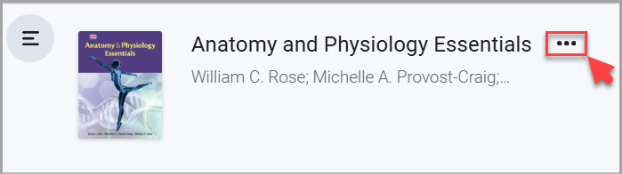
1. From your eBook’s Table of Contents, select the three dots.
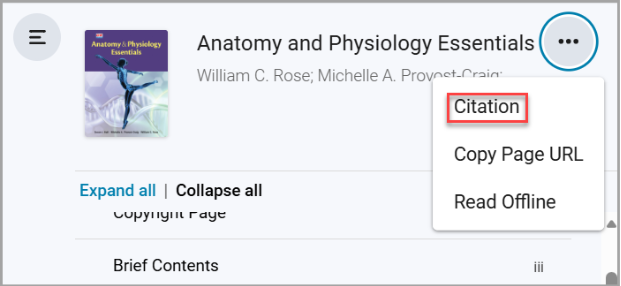
2. Select “Citation” from the drop-down menu.
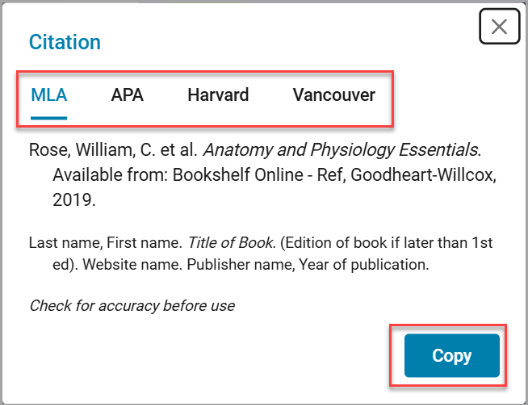
3. A citation window will appear. Select which citation format you wish to use and then select “Copy”.
4. A notification will appear in the top right of the eReader stating that the citation was successfully copied to your clipboard.


