G-W provides each user with a specific print allotment for the content in an eBook throughout the duration of the subscription.
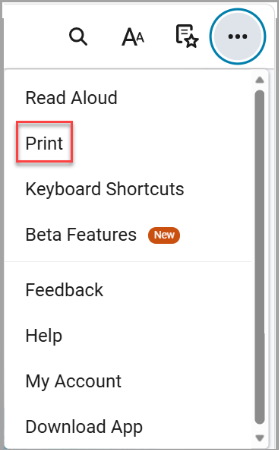
1. In your eBook, select the three dots in the upper right-hand corner.

2. Select “Print”.
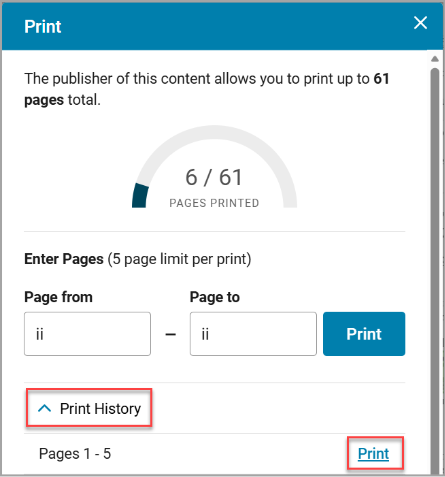
3. A Print window will appear. This window provides information regarding your current print allotment. Enter the pages you wish to print in the Page from and Page to fields and then select “Print”.
Note: You can print a maximum of 5 pages at a time.

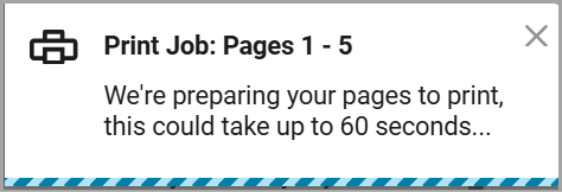
4. You will see a status bar as VitalSource prepares your pages to print.
Note: It may take up to a minute for your pages to be ready to print.
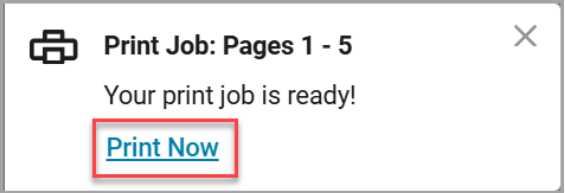
5. When your print job is ready, select “Print Now” from the status bar.
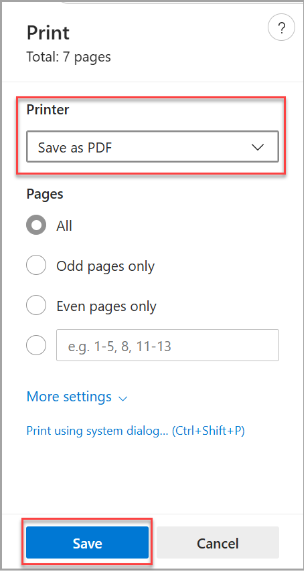
6. Select the “Printer” drop down menu and select your printer or select “Save as PDF” to save your pages as a PDF. Select “Save”
7. If you need to print the same pages from a previous print job, select "Print” from the three dots again. The Print window will open. Select “Print History” and then select “Print” to reprint the pages without using more of your print allotment.