VitalSource eReader: Read Aloud Feature

Jul 16, 2026
737

The Read Aloud feature allows you to listen to your eBook content using text-to-speech functionality within the VitalSource Bookshelf application.
To get started, open the eBook you want to read in your Bookshelf application.
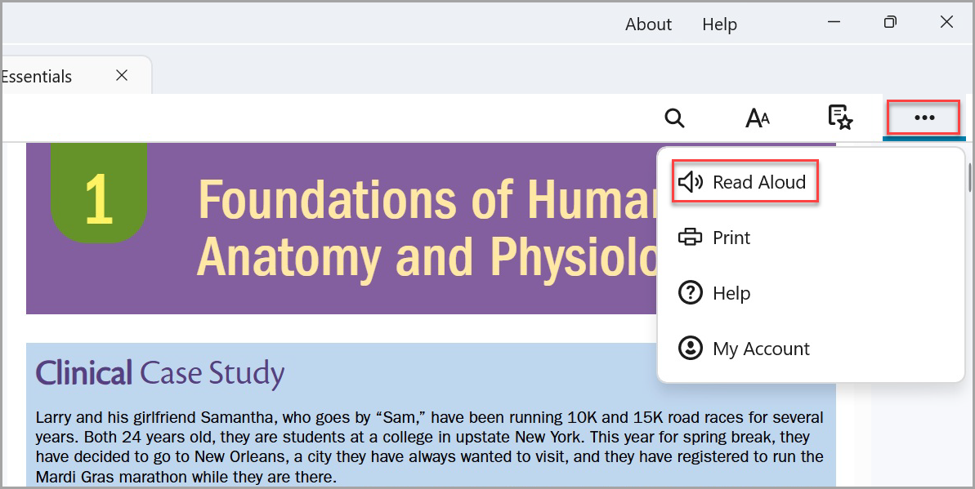
From here, select the three dots (More Book Options) from the top right side of your screen. Select “Read Aloud” from the drop down.
The Read Aloud player overview will appear. From here, you can do the following:
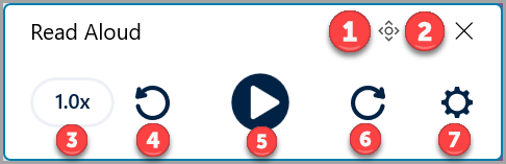
- Move the Read Aloud controls: Selecting this button will allow you to drag and drop your Read Aloud controls. Alternatively, press the space bar to activate and use your arrow keys to move the Read Aloud controls. Press space bar again to deactivate.
- Close the Read Aloud controls: Select the X icon.
- Adjust the Reading Speed: Selecting this button will open the Read Aloud settings window, allowing you to adjust the reading speed.
- Skip Back: Selecting this button will take the reader to the previous section or paragraph.
- Play/Pause: Selecting this button will play or pause the Read Aloud feature from your current position. By default, the player will begin reading at the top of your current page. As the player reads, the words will highlight on the screen. Scrolling the page or navigating to another place will cause the “Recenter” and “Read from here” buttons to display.
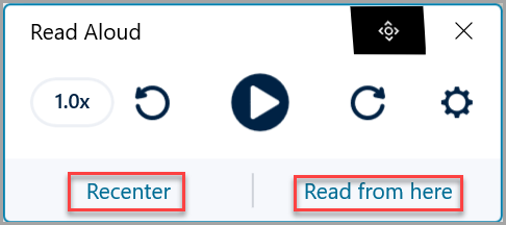
Selecting “Recenter” will scroll the screen back to the content that the player is currently reading. Selecting “Read from here” will begin reading from the topmost line of the text currently visible on screen. - Skip Forward: Selecting this button will take the reader to the next section or paragraph.
- Settings: Selecting this button will open the Read Aloud Settings window.
Read Aloud Settings
The Read Aloud Settings provide options for adjusting playback speed, voice preferences and content settings.
- Selecting the Settings button from the Read Aloud player controls will open the Read Aloud Settings window.
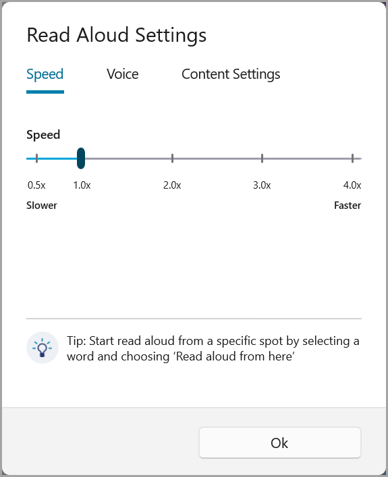
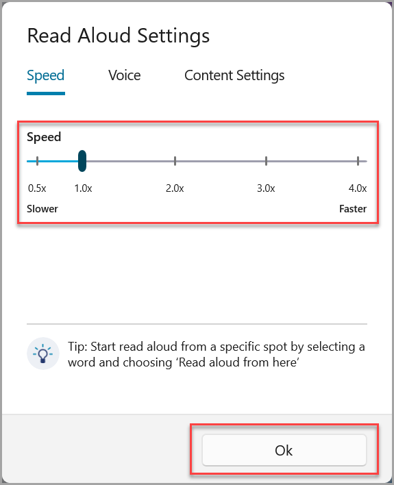
- From here, you can change the speed of the Read Aloud player by adjusting the slider and selecting “OK”.
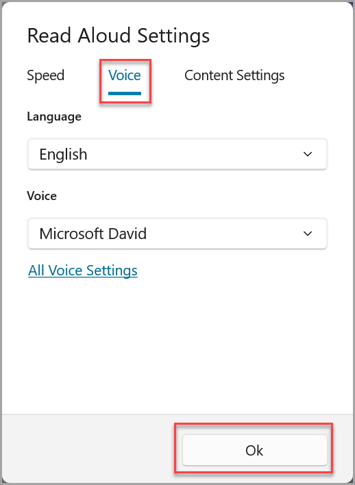
- By selecting the “Voice” tab, you can change voice of the Read Aloud player. The default language corresponds with the language of the book, and under each language are the voices that have been downloaded to your device. When you are satisfied with your selection, select “OK”.
Note: Changing the language will only change the language of the controls in the Bookshelf App. This feature will not translate your eBook.
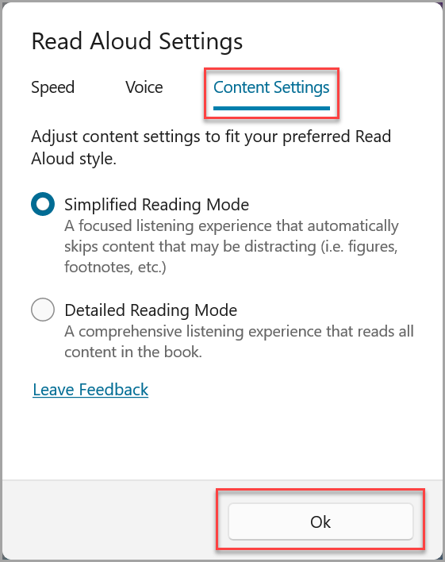
- By selecting the “Content Settings” tab, you can adjust your preferred Read Aloud style. Selecting “Detailed Reading Mode” will read all the content on the book page. Selecting “Simplified Reading Mode" will provide a more focused listening experience by skipping footnotes, image descriptions, URL hyperlinks, etc. When you are satisfied with your selection, select “OK”.