VitalSource eReader: How to Use the Search Tool

Jul 01, 2026
357

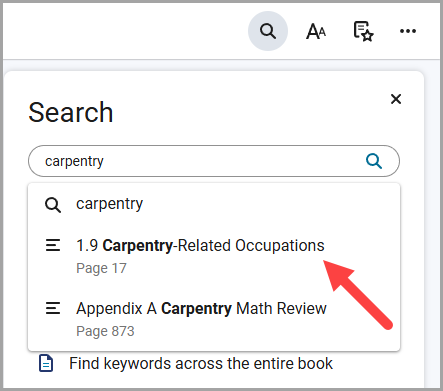
- To find specific text in the eBook, select the Search icon in the upper right-hand corner of the eReader.

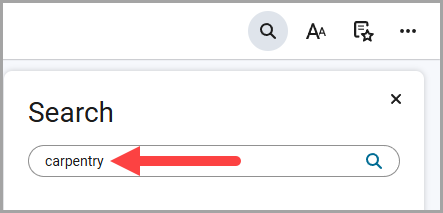
- Type a specific term or phrase in the search box and select the Search icon.
- Search results will appear. Select a specific link to view the section of text with the term or phrase in the eBook’s content.