VitalSource eReader: How to Create Highlights and Notes

Jul 01, 2026
425

Steps to Highlight Text
- Select the text you wish to highlight to open the highlight and notes menu.
- Select one of the colors from the menu box.

- To add more highlight colors, select “Reader Preferences” from the upper right.

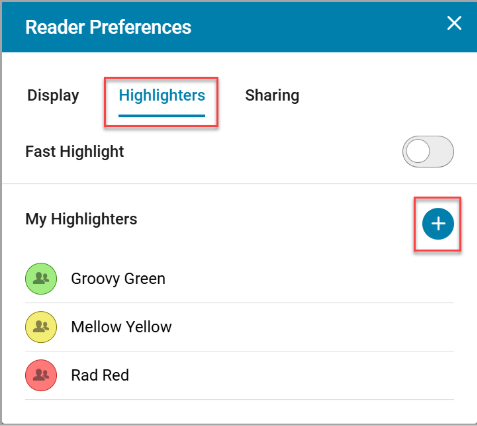
- Under the “Highlighters” tab, select the + next to your current highlighter colors.
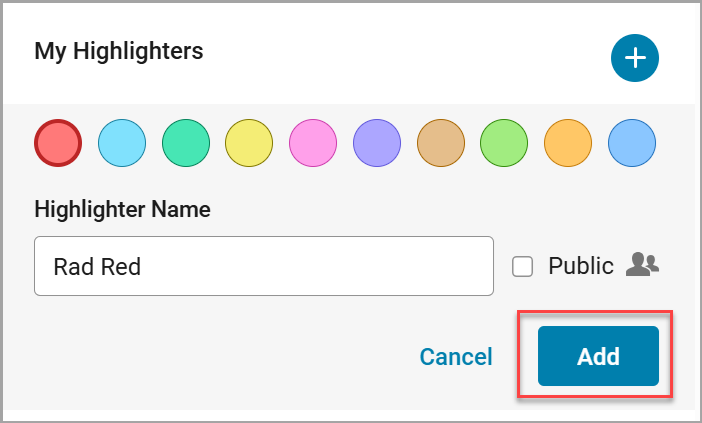
- Select a highlighter color. Optionally, you can name your chosen color. Select “Add” to make your new color available to highlight.
Steps to View or Delete a Highlight
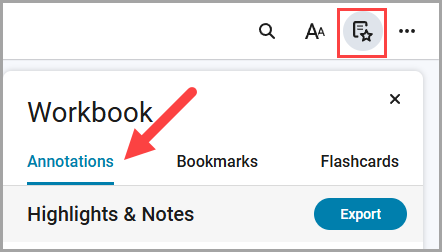
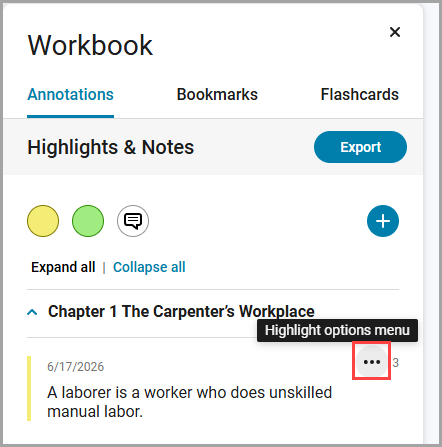
- Select the "Highlights, Notes, Bookmarks, and Flashcards" button from the upper-right. Select the Annotations tab to open your Highlights and Notes.
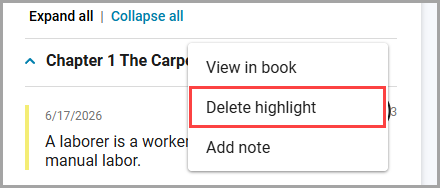
- Select the "Highlight Options Menu" button and select "Delete highlight".
Steps to Create a Note
- Select the text you wish to notate to open the highlight and notes menu.
- Select "Add Note".

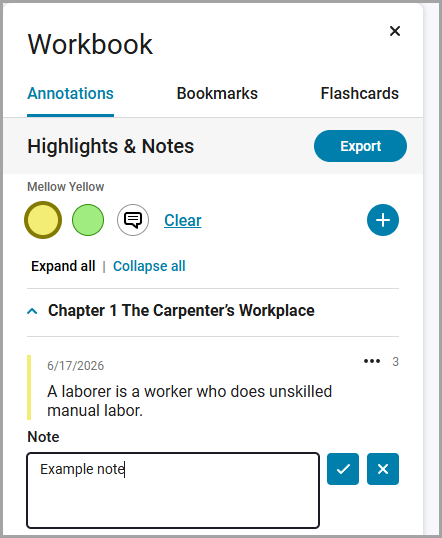
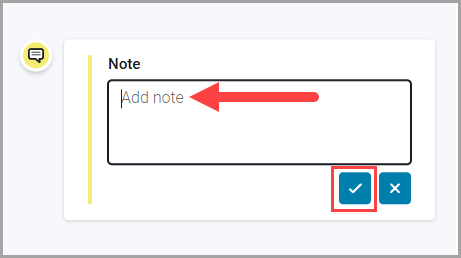
- Type a note in the sidebar that pops up and select the checkmark button to save.
How to View Your Notes and Highlights
-
Select the "Highlights, Notes, Bookmarks, and Flashcards" button from the upper-right. Select the Annotations tab.
- Here you will find all of your notes and can edit them as needed. You can also use the "+" button to create additional highlight colors.