399
399
The Online Instructor Resources (OIR) may be accessed through your LMS (Learning Management System) once you've activated your textbook subscription in your LMS. Depending on the product, the OIR includes Resource Materials such as Correlation Charts, Pacing Guides, and Rubrics as well as Chapter Resources such as Lesson Plans, PPT Presentations, and Answer Keys.
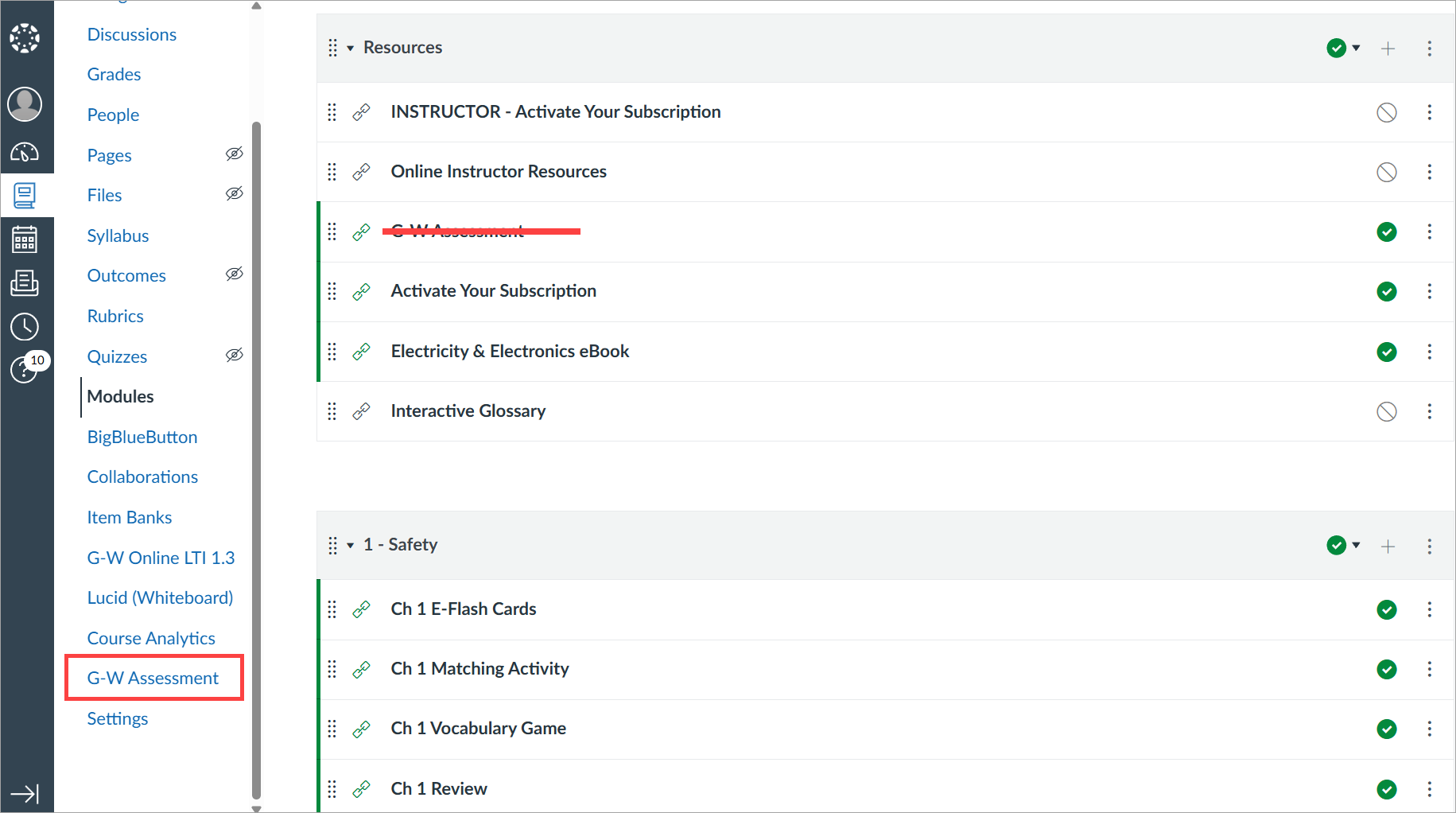
Exam/Assessment Files for copyright 2026 and newer may be found in our newest platform, G-W Assessment. To learn more about G-W Assessment, click here.
View the steps below to learn how to navigate the Online Instructor Resources from your LMS:
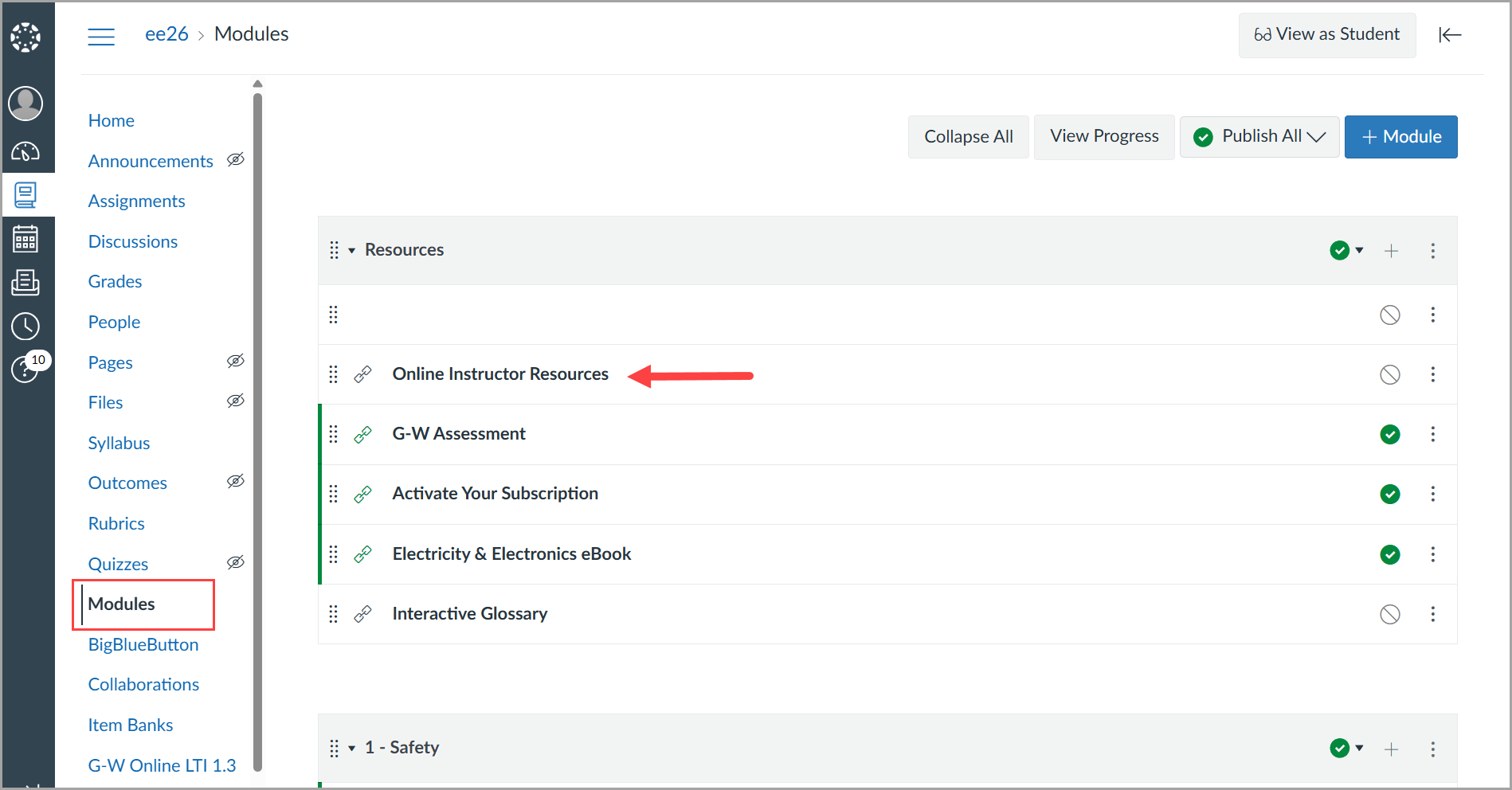
- After logging in to your LMS (Canvas, Blackboard, Schoology, etc.) select the Modules link in the Course Navigation to view the materials that come with this title. Then select the Online Instructor Resources link under the Resources module.
- Depending on the product, the OIR includes Resource Materials such as Correlation Charts, Pacing Guides, and Rubrics as well as Chapter Resources such as Lesson Plans, PPT Presentations, and Answer Keys.
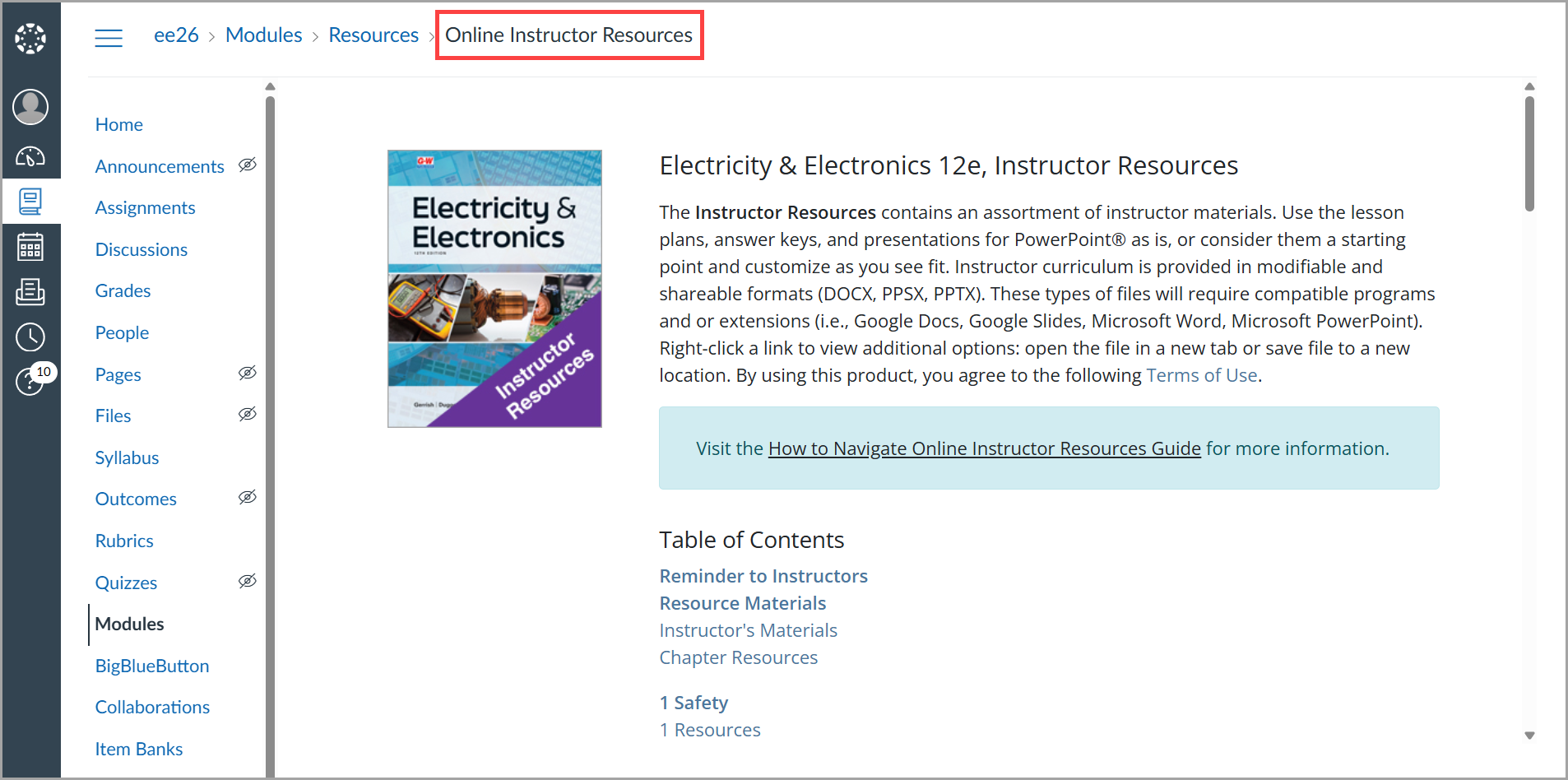
- Under Table of Contents, you will see a subheading for Resource Materials and resources for each Unit or Chapter in the text.

- Resource Materials: Find product updates, correlation charts, pacing guides, and other helpful documentation to set up your course.

-
Chapter Resources: Find Lesson Plans, Answer Keys, and Presentations for PowerPoint®. The blue icon indicates a .docx formatted file which may be downloaded and used in Microsoft Word or converted to a Google Doc.

- Scroll down to view the Presentation files. The red icon indicates a .pptx formatted file which may be downloaded and used in Microsoft PPT or converted as a Google Slide Deck.

- Select a file from the Online Instructor Resources to download, edit, and/or save for future use.

To learn more about using G-W Assessment in Canvas, please select the following link: How to Use G-W Assessment in Canvas