


 1
1
Sharing Notes
Users may generate a set of highlights/notes and share them with others.
-
Select Reader Preferences in the right-hand corner.

-
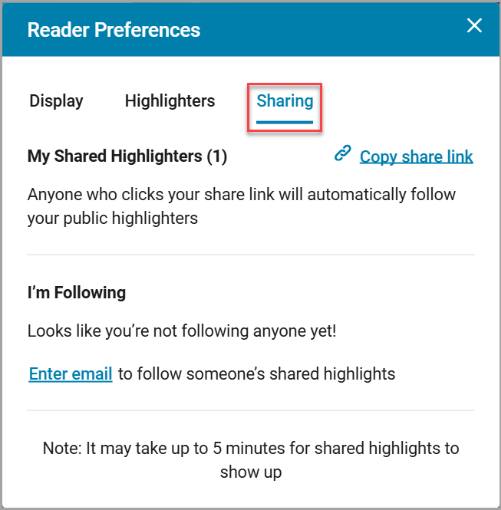
Select the “Sharing” tab from the Reader Preferences menu.
-
Select “Copy Share link” to copy a URL to your clipboard. You can share this URL with others. Anyone who visits the URL will automatically follow your highlights and notes.
-
To follow another person’s highlights and notes, make sure you are signed into the Vital Source reader, then have them share their Share Link with you. You will automatically follow them once you select their link.
-
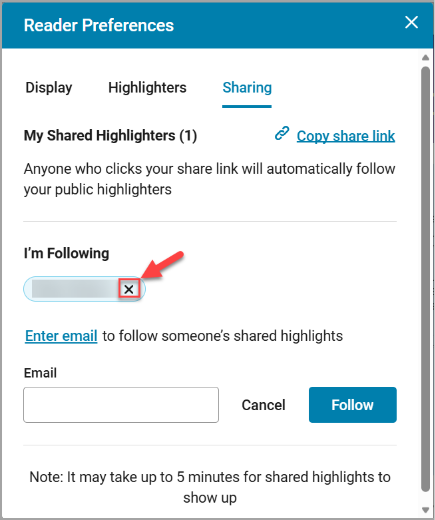
To unfollow someone, select the X next to their name.
-
To view the notes of people you follow, select the Highlights, Notes, Bookmarks, and Flashcards button from the upper-right.

-
Under the “Annotations” tab, you will now see any highlights or notes from the person you are following. Their initials will appear next to their notes/highlights. The highlights of people you are following will appear as a thin line around the text instead of a solid highlight.
Note: It may take up to 5 minutes after following someone for their notes/highlights to appear.

