VitalSource eReader: How to Create Flashcards

Jul 01, 2026
 1
1
- To create a flashcard, select a portion of text.
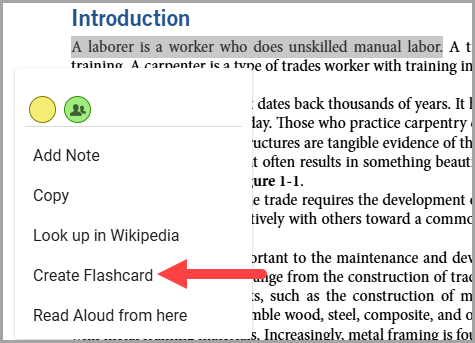
- Select "Create Flashcard" from the menu.
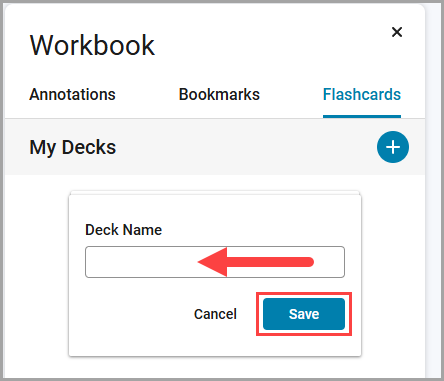
- Add a name for the deck from the sidebar menu and select "Save".
- The front side of the card includes your highlighted text.
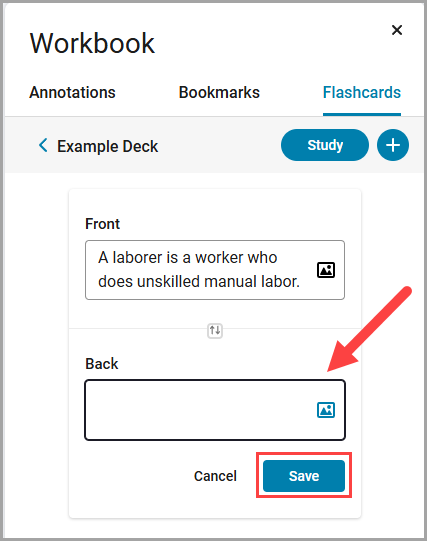
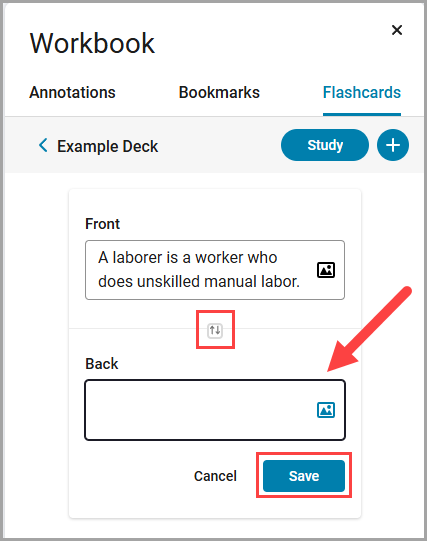
- Type in a note for the back side, add an image from the book if needed, or swap the front and back text. When ready, select "Save".
Accessing and Studying Flashcards
-
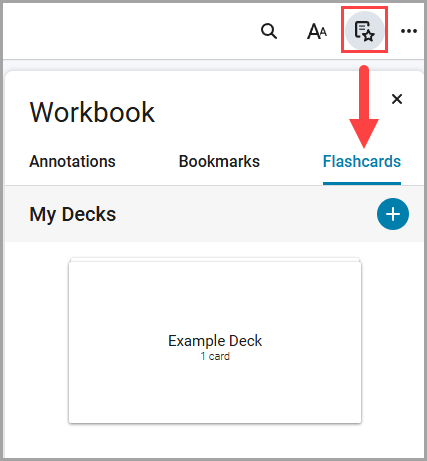
Once you have created flashcards, you may view them by selecting the "Highlights, Notes, Bookmarks, and Flashcards" button in the upper-right. Then, select the Flashcards tab.
-
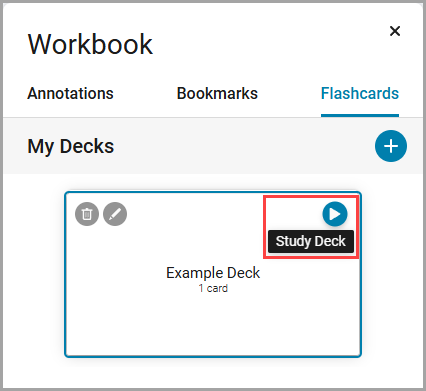
Select a Flashcard Deck to edit or study.
-
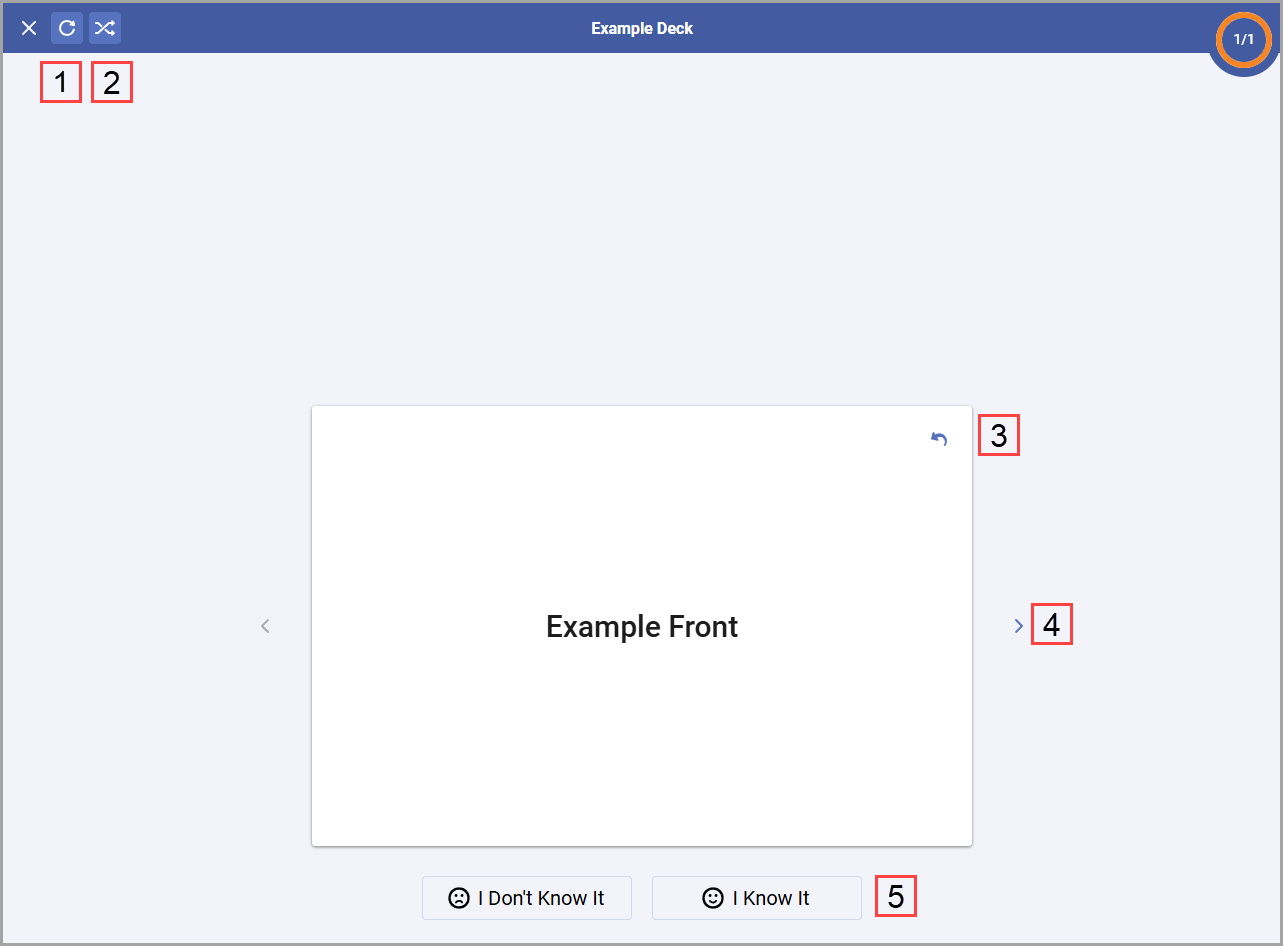
A new window will open with the flashcard deck displayed. A variety of options can be used while studying.
-
Restart Deck: Start from the beginning of the deck.
-
Shuffle Deck: Randomize the deck.
-
Flip Card: Flip card side.
-
Next Card: Navigate forward or backward through the deck.
-
I Don't Know It/I Know It: Highlight specific questions for further study while navigating the deck.
-
-
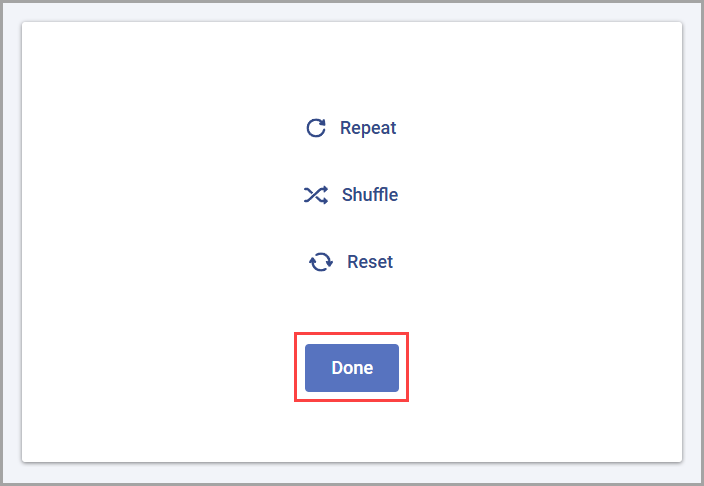
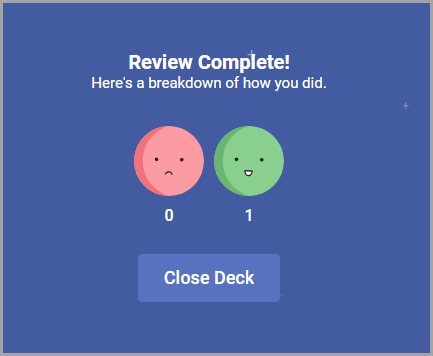
When finished, select "Done" to complete the deck and view your results screen.