194
194
G-W LTI 1.3 Setup for Brightspace/D2L
Brightspace Admin Registers the G-W LTI Tool
1. Log in as an administrator
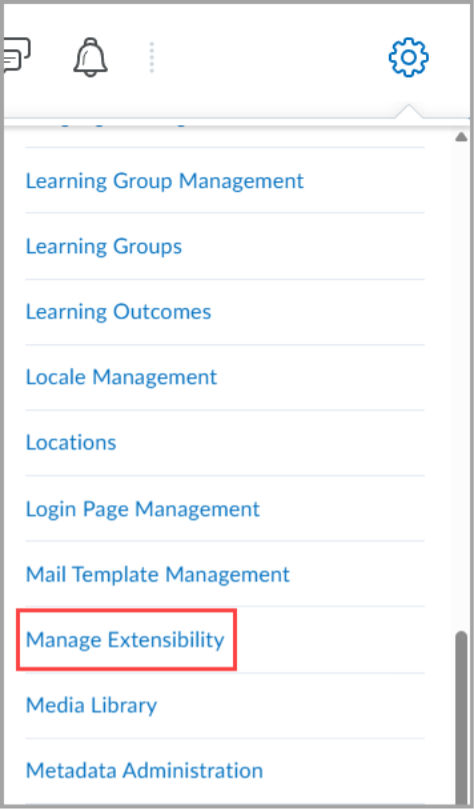
2. Select the “Admin Tools” gear icon to open the menu. Under the Organization Related section, select "Manage Extensibility"
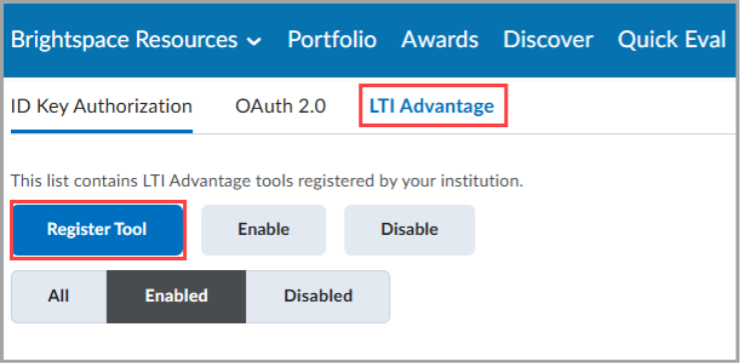
3. Select “LTI Advantage”. Below that, select “Register Tool”.
4. When asked “How would you like to register your tool?”, select the "Standard" option. More options will appear below.
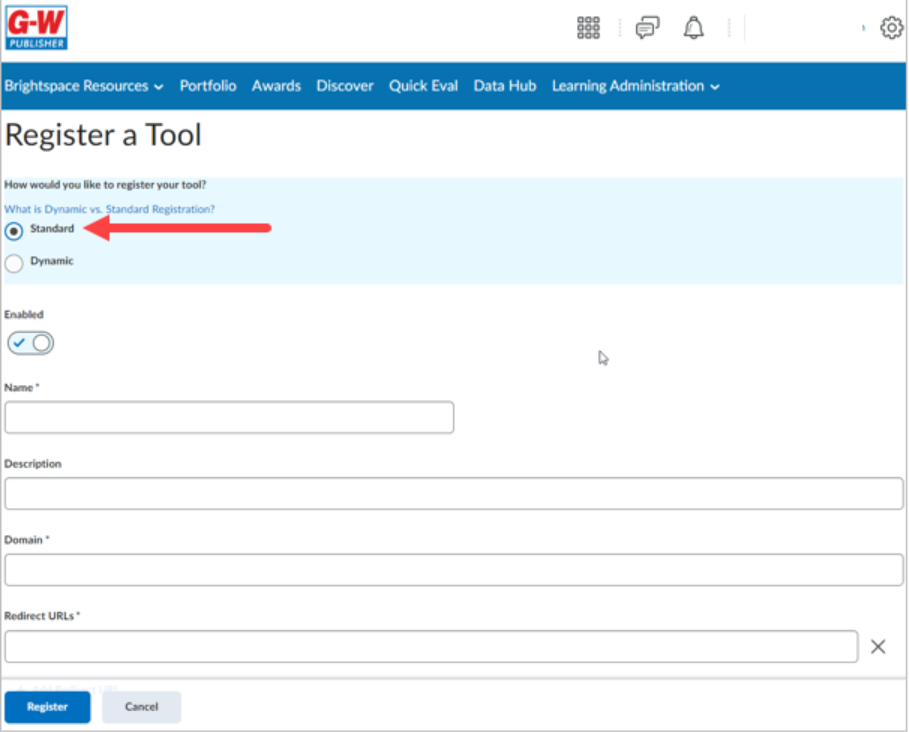
5. Enter the following information into the fields:
Name*: G-W Online LTI 1.3
Domain*: https://www.g-wonlinetextbooks.com
Redirect URLs*: https://www.g-wonlinetextbooks.com/api/lti/access
OpenID Connect Login URL*: https://www.g-wonlinetextbooks.com/api/lti/authentication
Keyset URL: https://www.g-wonlinetextbooks.com/api/lti/jwks
6. Leave the following fields blank:
Extensions: Leave this section blank.
Roles: Leave this unchecked.
Substitution Parameters: Leave this section blank.
Custom Parameters: Leave this section blank.
7. Select the "Register" button.
8. A window containing your Brightspace Registration Details will pop up. Copy and paste this information into a document and save it. G-W will need this information to complete your registration.
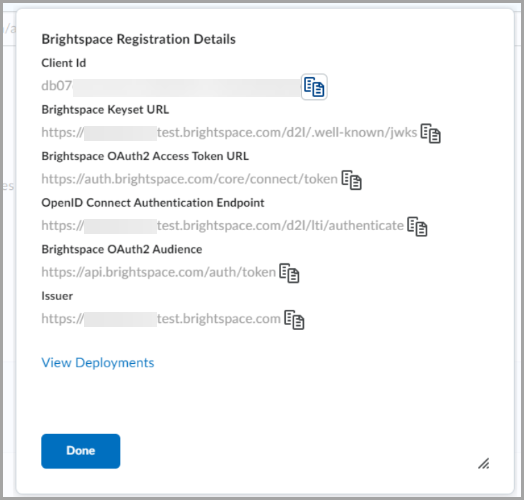
9. Select the "Done" button.
Brightspace Admin Creates a New Deployment
10. Select on the “Admin Tools” gear icon to open the menu. Under the Organization Related section, select "External Learning Tools".
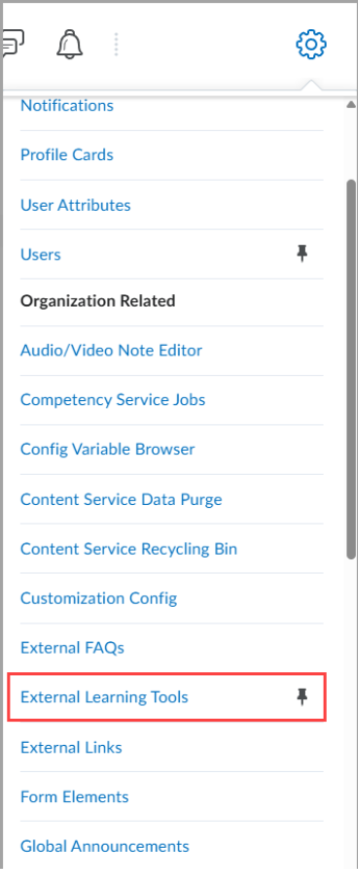
11. Select “LTI Advantage”. Below that, select “New Deployment”.
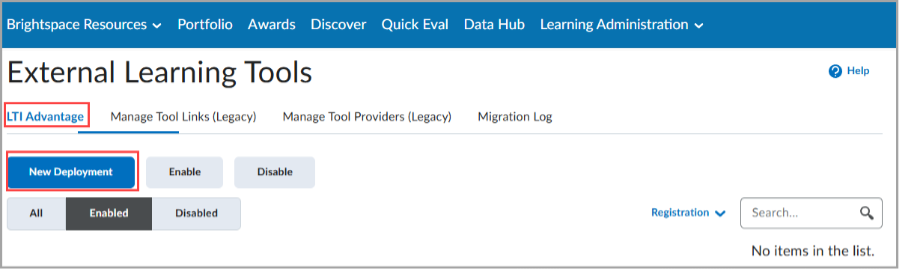
12. Enter the following information into the fields:
Enabled Toggle switch to "on”
Name*: Select "G-W Online LTI 1.3"
Extensions: Leave this section blank.
Security Settings:
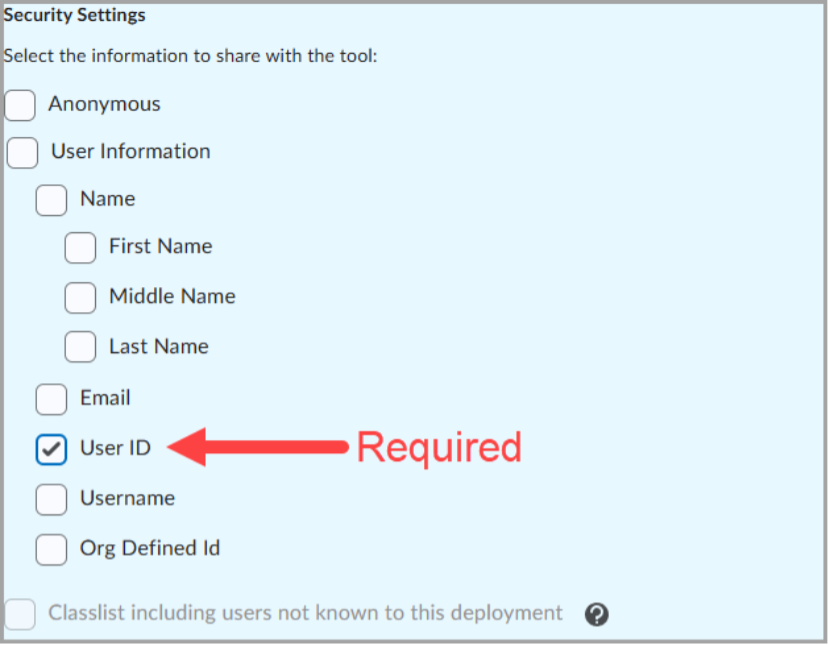
The following must be checked
User ID
The following must be unchecked
Anonymous
All other settings are optional.
Configuration Settings
Open as External Resource. Check this box.
13. Add Org Units
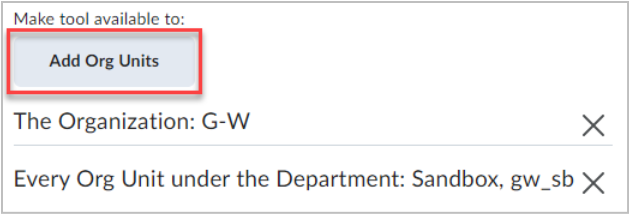
Check boxes for any Org Unit that will need access to G-W Resources, and select the "Add" button when finished.
14. Scroll to the bottom and select the "Create Deployment" button.
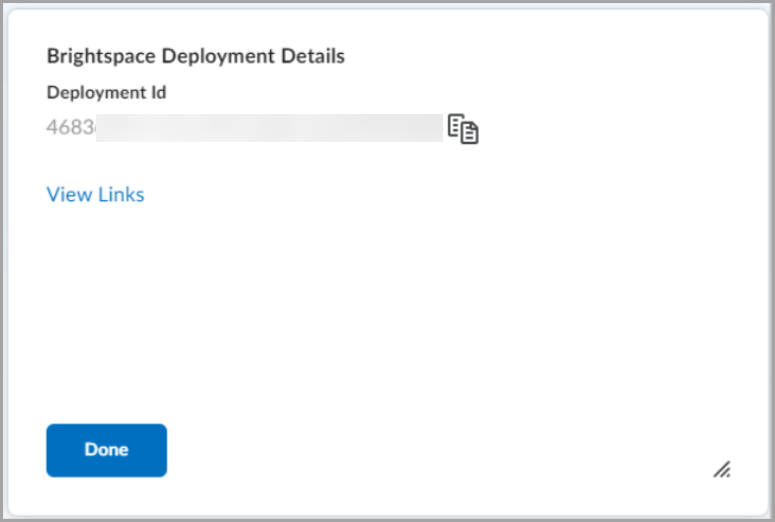
A window containing your Brightspace Deployment Details will pop up. Copy and paste this information into a document and save it. G-W will need this information to complete your registration.