107
107
Welcome to G-W Ignite. We will guide you through how to access your activities and grades. Let’s get started!
Course and Assignment Status
The course folders under the Content tab in G-W Ignite contain resources specific to each unit, chapter, or module and are organized by the online text’s table of contents.
-
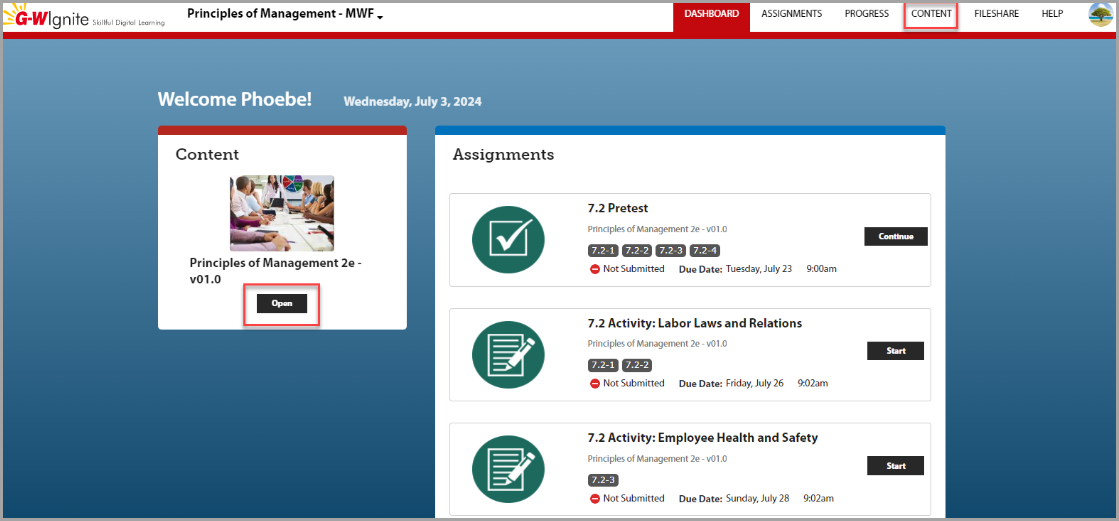
Under Content, click the Open button to explore the various activities (including the online text) available within each course folder. Your instructor might not assign every activity, but they are still available for you to explore as study tools or for practice.
-
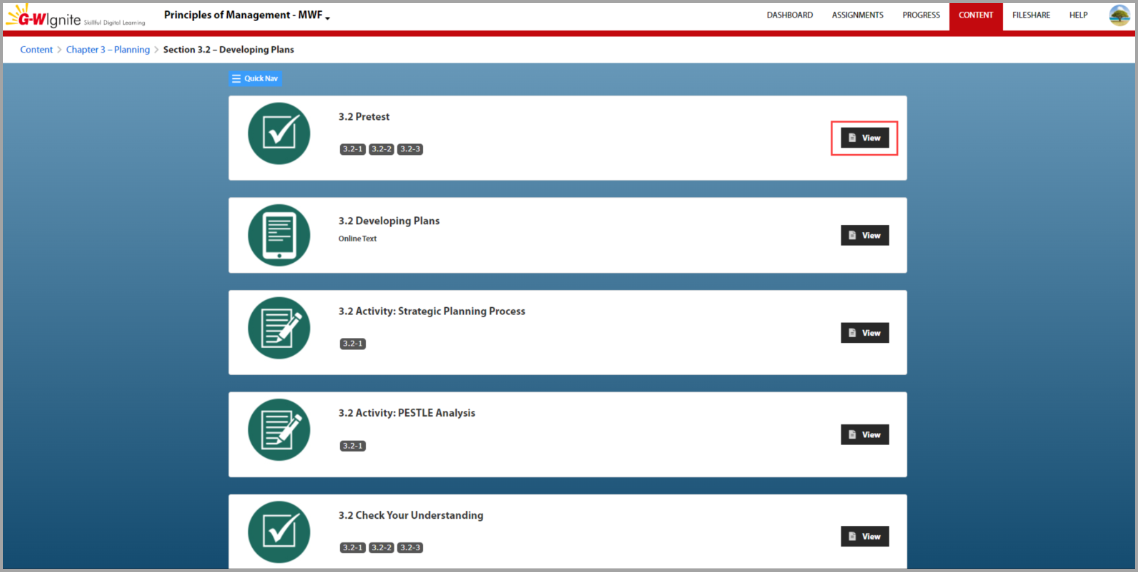
Click View to see an activity’s details.
-
Assigned activities will show their status (submitted or not submitted), the due date, and your grade (if available). Grades may be available immediately after you complete your assignment, or they may be released later by your instructor.

-
If an activity is assigned with a start date, you’ll see a Start button.

-
If you start an activity and save your progress, a Continue button will appear.

-
Some activities, like a posttests, can’t be accessed until they are assigned. You will see a grayed-out Start button.

Progress Tab
The Progress tab offers a detailed overview of your assignment results, allowing you to track your progress and identify areas for improvement.
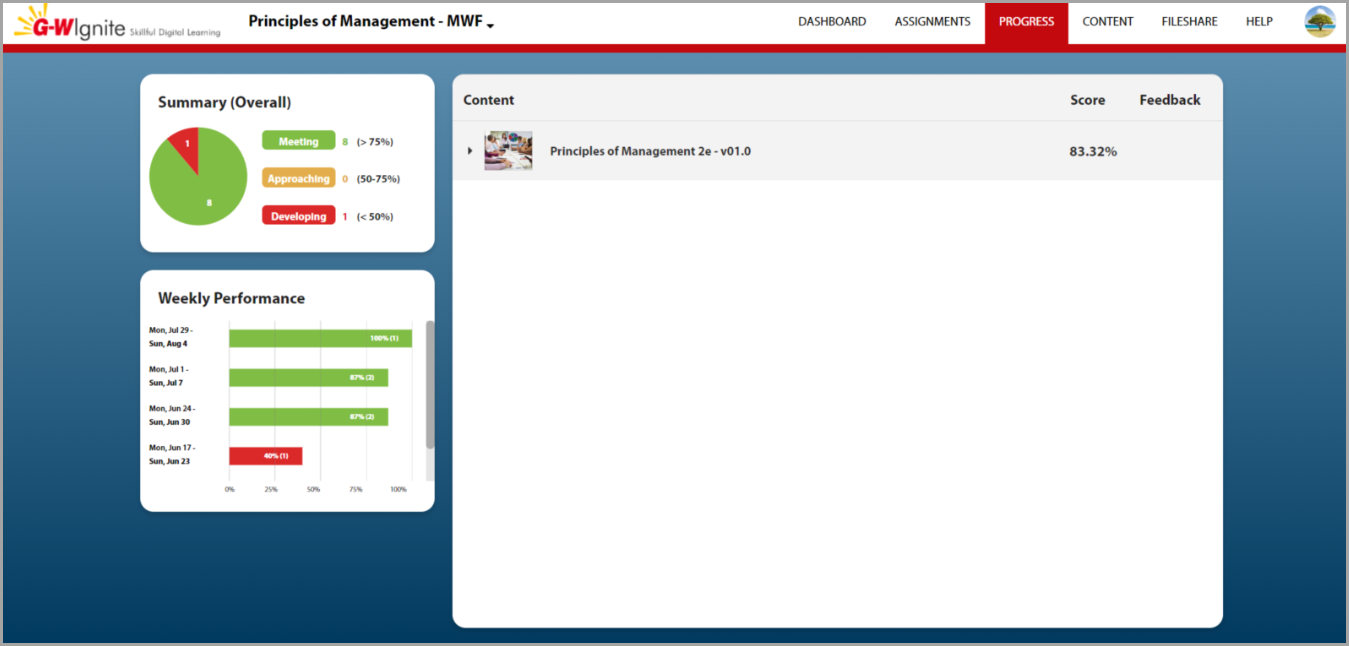
- Summary (Overall) Chart – See your progress at a glance.
- Breaks down your score by percentage, giving you a quick overview of your performance.
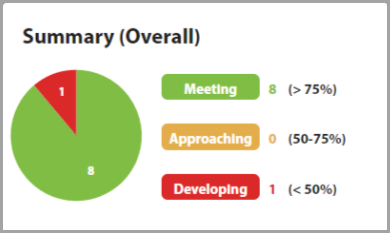
- Breaks down your score by percentage, giving you a quick overview of your performance.
- Weekly Performance – Track your progress over time.
- Provides insight into your week-by-week performance, helping you identify areas for improvement.
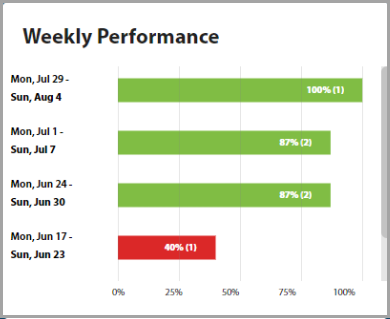
- Provides insight into your week-by-week performance, helping you identify areas for improvement.
- Content Section – Access detailed feedback on individual assignments.
- Your overall grade is the top score.

- Expand the course to view scores for each activity.

- Once expanded, the content is organized by chapters, units, or modules, mirroring your online textbook and the Content page.
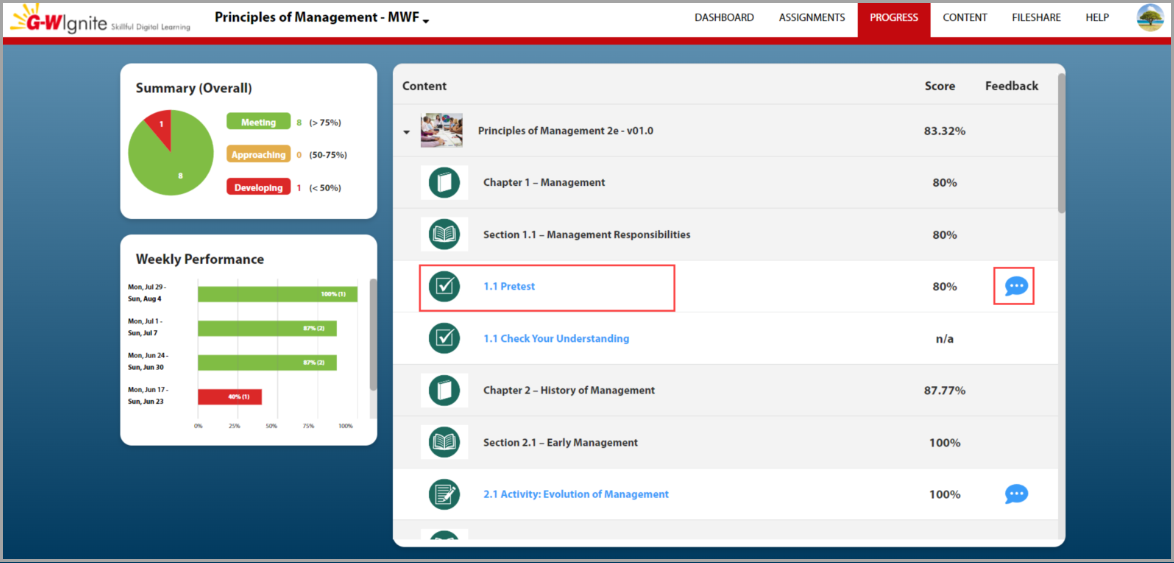
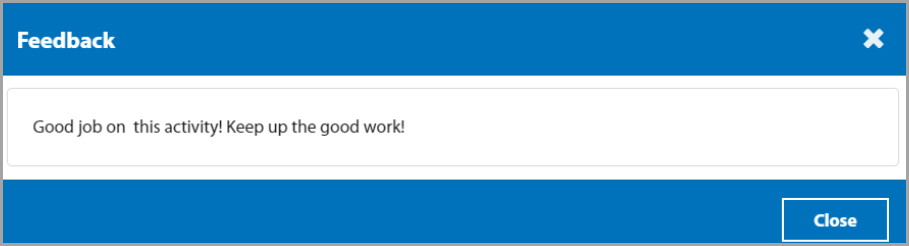
- Click on the blue speech bubble next to your activity score to view any feedback left by your instructor in a pop-up window.
- If your instructor allows you to review graded assignments, the name of your submitted assignment will appear in blue.
- Click the assignment name link then select Review to review your work.
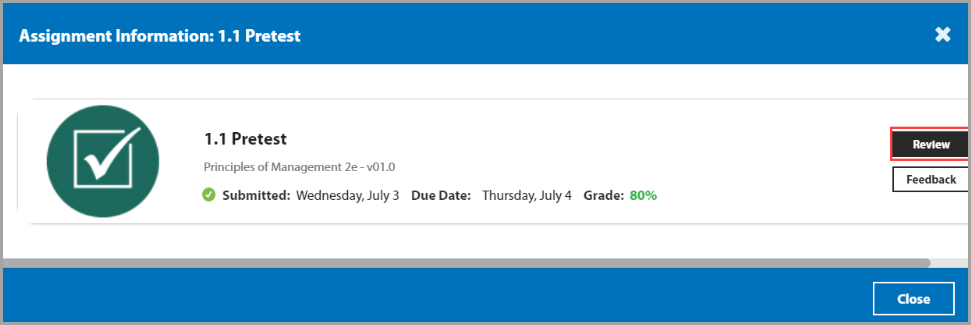
- During review, the Show Correct Answer option reveals the solutions for questions you missed.

- Click the assignment name link then select Review to review your work.
- Waiting on Grade
- Some graded assignments, like short response questions and file attachments, take time for your instructor to review. You’ll see a Waiting on Grade message on the assignment tile until the grading process is complete.

- Some graded assignments, like short response questions and file attachments, take time for your instructor to review. You’ll see a Waiting on Grade message on the assignment tile until the grading process is complete.
- Your overall grade is the top score.
Help
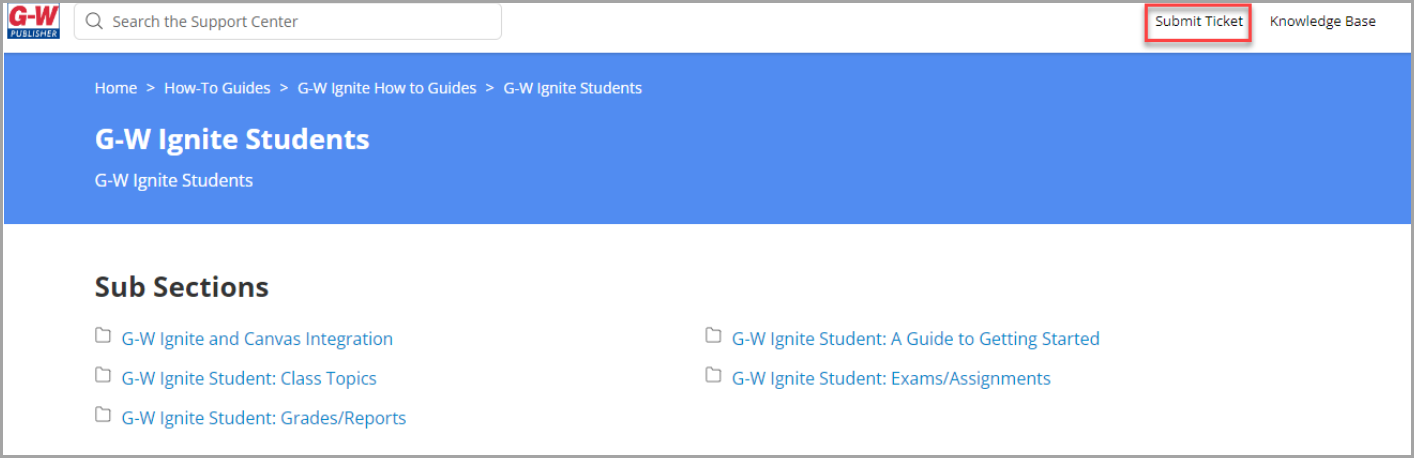
Should you require assistance at any point, navigate to the Help tab. Here, you’ll find a wealth of knowledge-based articles that cover frequently asked questions. For additional support, the “Submit Ticket” link allows you to contact the G-W support team directly.