


 414
414
After copying a course in Blackboard Ultra, you will have to reconnect the copied course and its assignments back to G-W Assessment. To do so, follow the steps below:
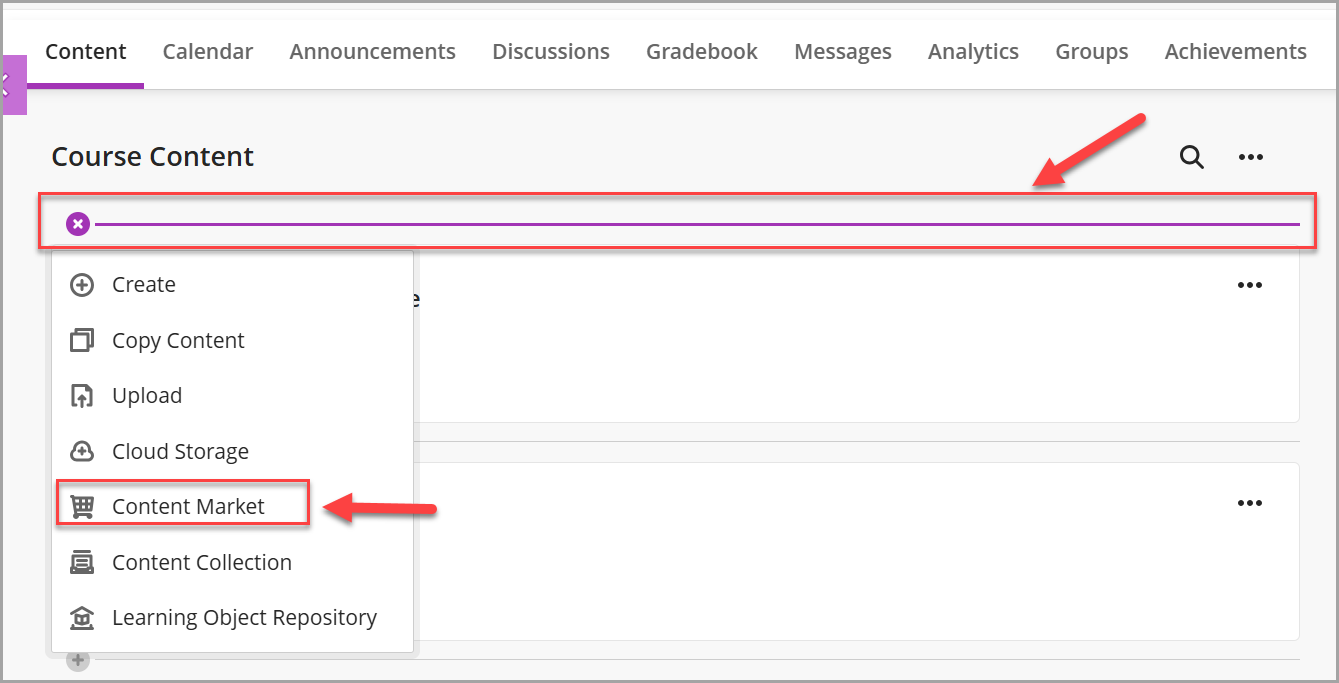
- In your copied course, select the grey plus sign (
 )and then select Content Market.
-
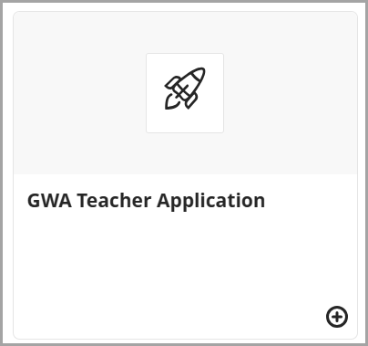
Select GWA Teacher Application (name may vary depending on how this is set up by your LMS admin).
-
Select Connect.

-
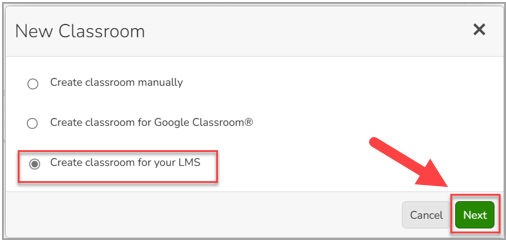
Select Create Classroom for your LMS (Canvas or Schoology) and then select Next.
-
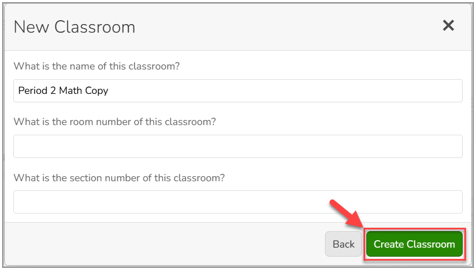
Provide a name for your classroom. Optionally, you can also provide a room number and section number. Select Create Classroom.
-
Once a course is copied in the LMS and connected to G-W Assessment, assessments are automatically activated. Students can access their assignments immediately if the available start and end date are open. For this reason, we recommend reviewing your assessment policy settings after the course copy is complete.

