

G-W Assessment Schoology: Assignment Results

Last updated: Oct 09, 2026
766
views

Viewing Student Item and Standards Results
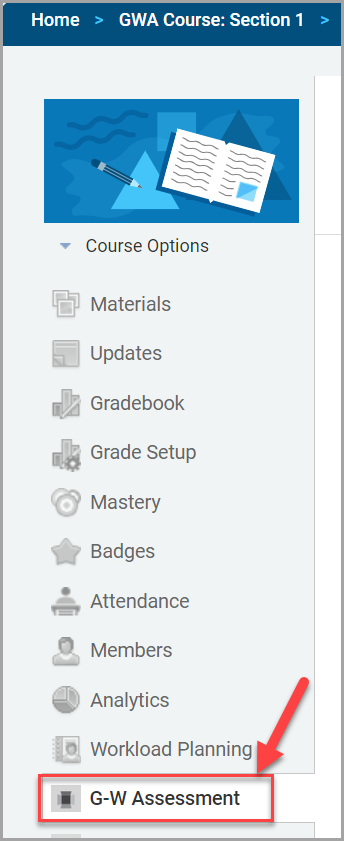
- Navigate to your "G-W Assessment" on the left navigation bar. Select the assignment.
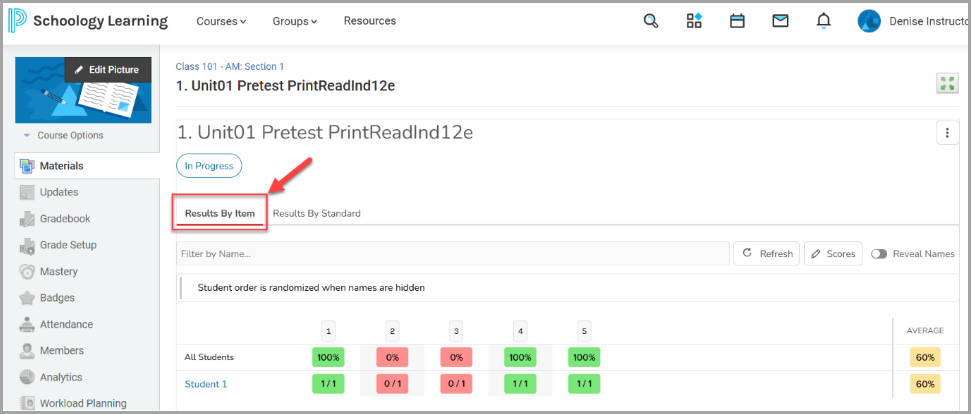
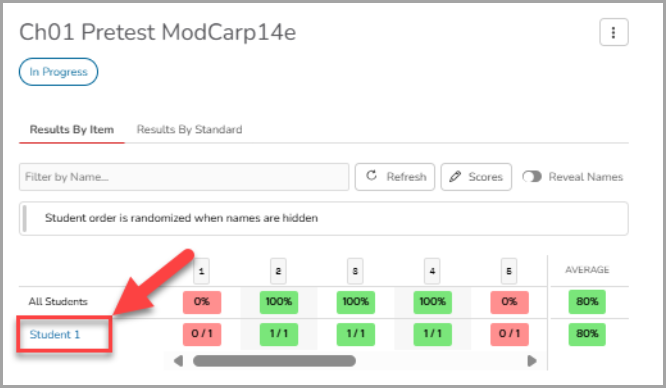
- You will be directed to the "Results By Item" tab for that assignment, where student results are initially displayed anonymously. Note: Student orders are randomized when names are hidden.
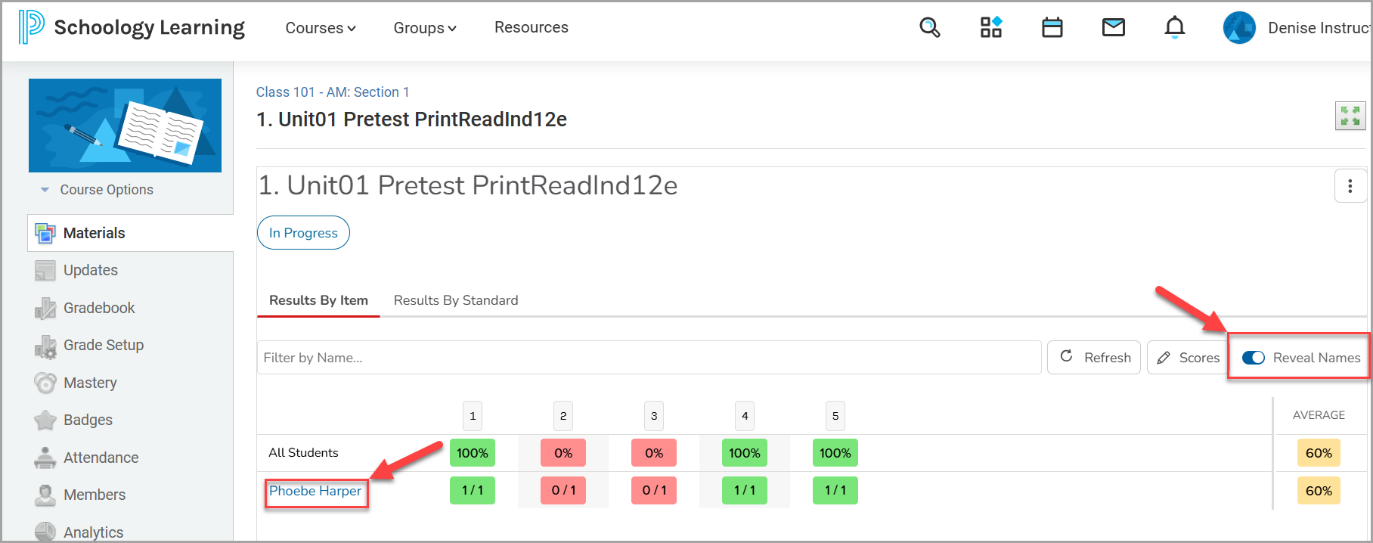
- To display student names, toggle "Reveal Names".
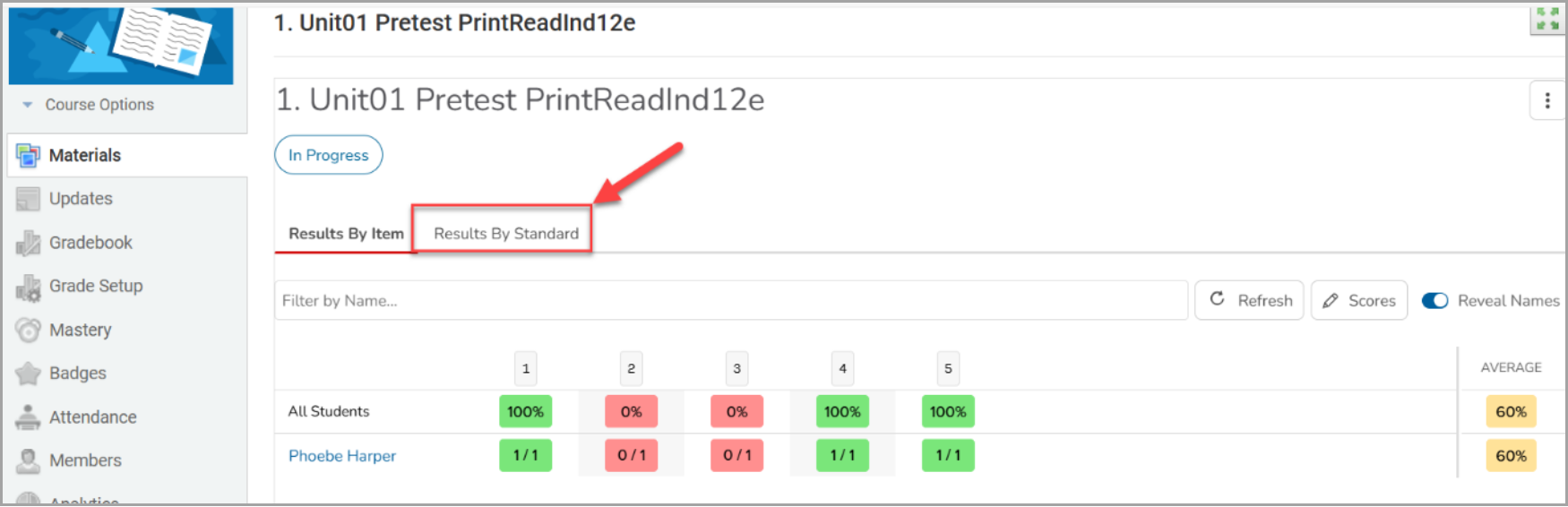
- To view student results organized by learning outcomes, select the "Results By Standard" tab.
- To view more details on the Learning Outcomes and assessment items, select a student's name.
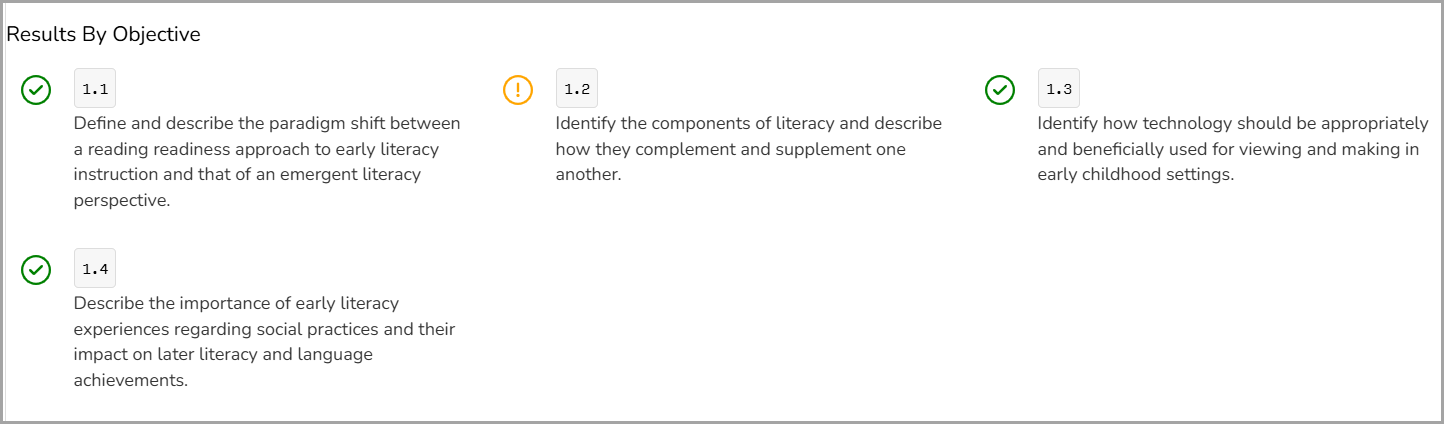
- This will display their performance, including specific Learning Outcomes and item details. An orange exclamation point indicates that a student got the question incorrect, while a green checkmark indicates that they answered the item correctly. Select the name of the assessment to navigate back to the assessment page.
Adjusting Student Scores
To adjust a student’s score for an assignment:
- Select the assignment from the "Assignments" tab or the assignment from "Grades".
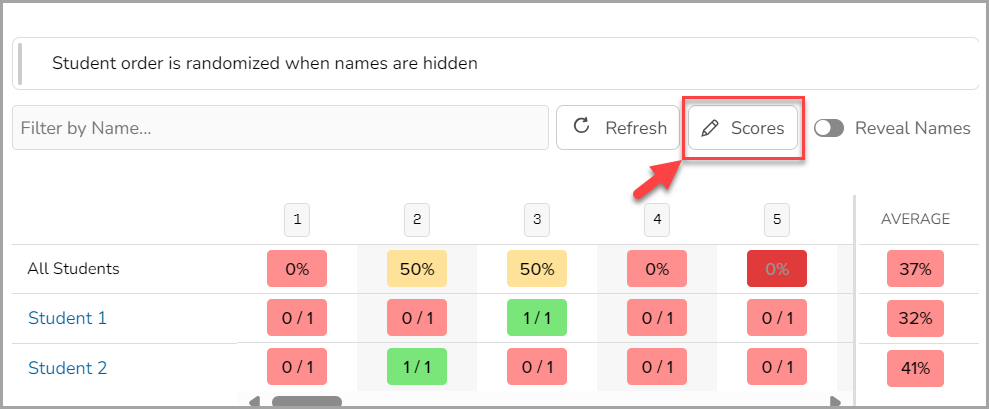
- In the assignment, select the "Scores" button.
- In the "Modify Scores" page, from the "Question" drop-down menu, select or navigate to the specific question you wish to adjust. You can also use the arrows next to the drop-town to navigate through the questions.
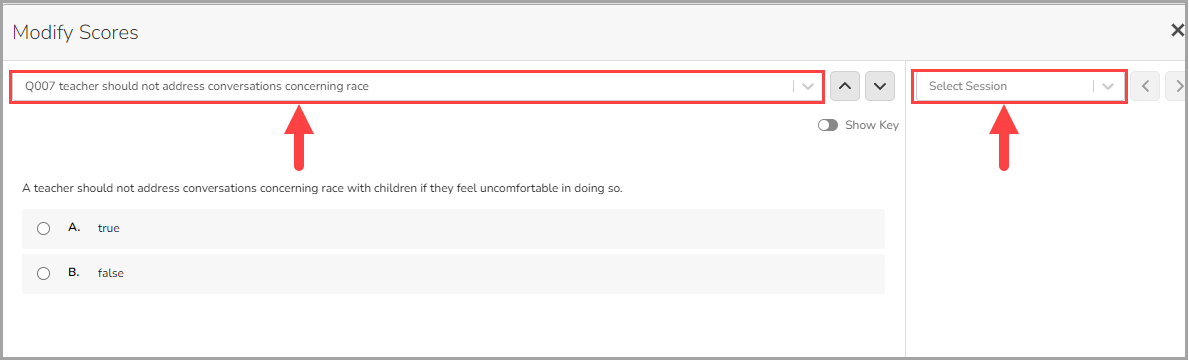
- In the "Select Session" drop-down, select the student you will adjust the score for. You can also use the arrows next to the drop-town to navigate through the students.
- Add the point value to the box and select the check mark (
 ) button.
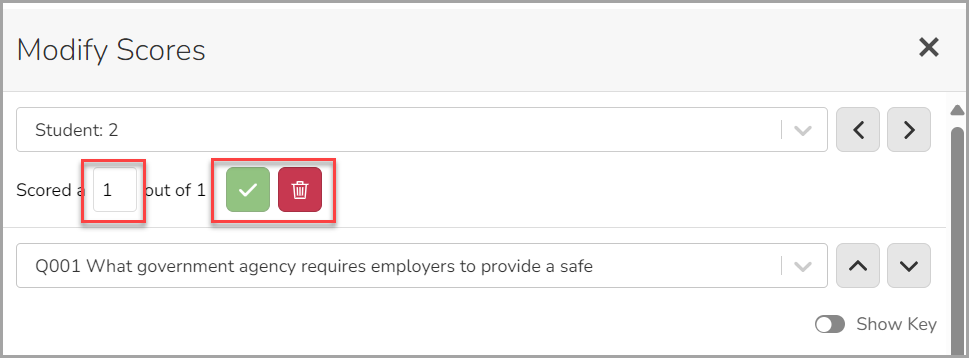
- Additionally, you can select the red trashcan (
 ) button to clear the score.
Grading Manually Graded Assessment Questions
After students submit their assessment, to grade manually graded questions like essay or short answer questions:
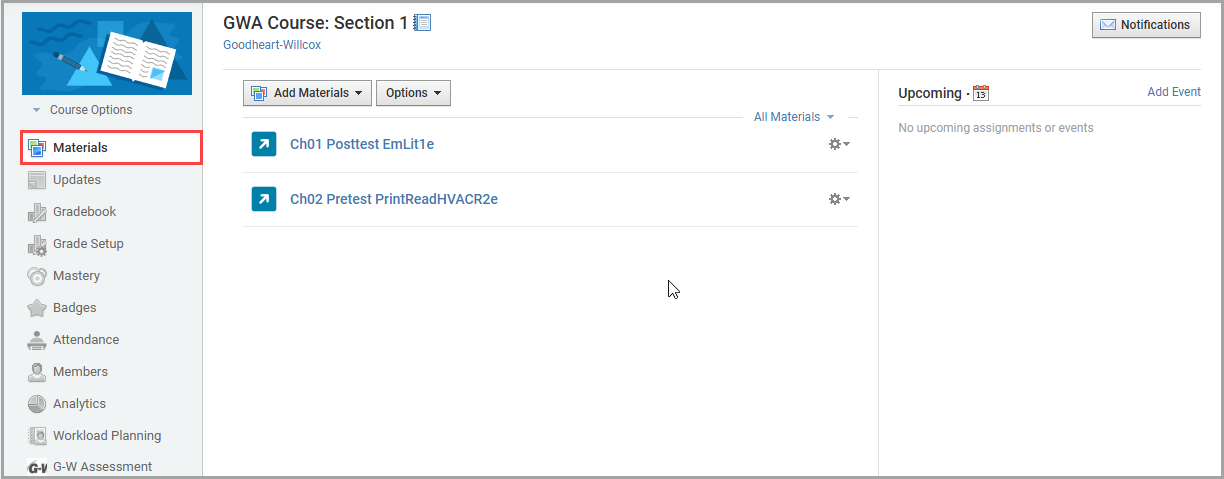
- Select "Materials" from the left navigation bar. Locate your assessment and select it.
- Manually graded responses will be displayed as greyed-out cells. Select the greyed-out cell to enter a grade.

- Enter the score in the field and select the checkmark button (
 ) to save the score and update the student‘s total. You can quickly cycle through students using the student dropdown menu.

- Select "X" to close out the grading screen once you have finished adjusting student scores. A popup will appear confirming the student’s score.
Note: Student grades will not update in your LMS gradebook until all manually graded questions have an associated point value.

