


G-W Ignite Instructor: How to Bulk Assign Assignments

Jan 21, 2026
 129
129
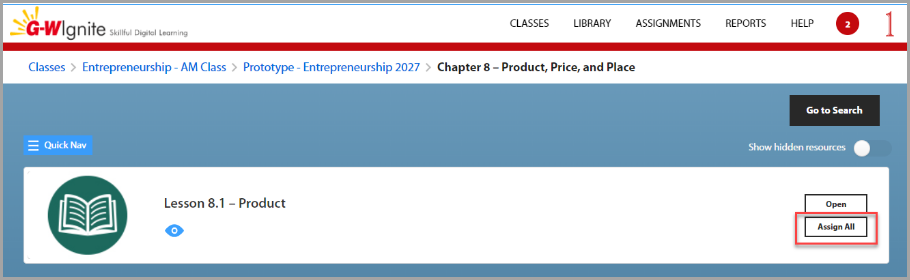
This feature allows instructors to quickly assign all activities within a subsection with a single click. When viewing a course selection, instructors will see an "Assign All" button. Clicking this button with open an assignment menu with all activities pre-selected.
It's important to note that all activities being assigned must have the same start and due dates. However, instructors can adjust these dates after the initial assignment.
- Select a subsection or lesson that you would like to assign and select Assign All.
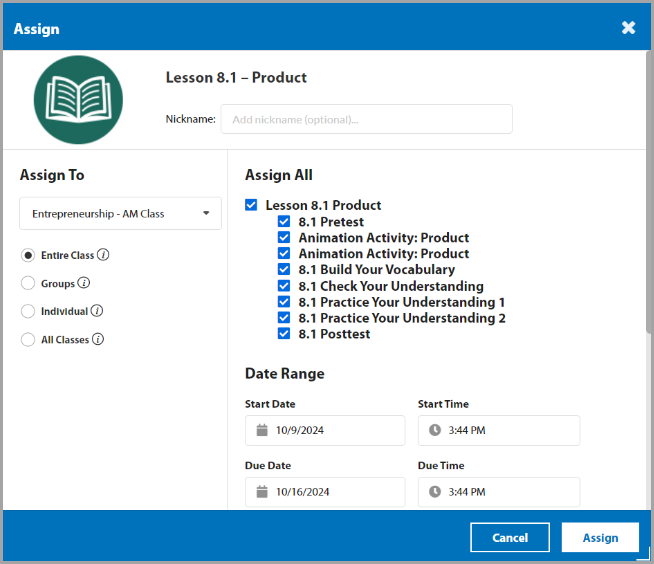
- All activities in this subsection will appear checked. Uncheck any that you do not want to assign and complete the Assignment Details then select Assign.
The Calendar icon will now appear under the assignment to indicate that it has been assigned.

