


Canvas: How to Import Question Bank/Exam Files for Health Titles Copyright 2025

Mar 27, 2026
 1542
1542
Both System Administrators and Instructors have the permissions to import question bank/exam files into Canvas once they have activated their subscription.
First, you'll need to download the Question Bank (QTI) Files from the Online Instructor Resources:
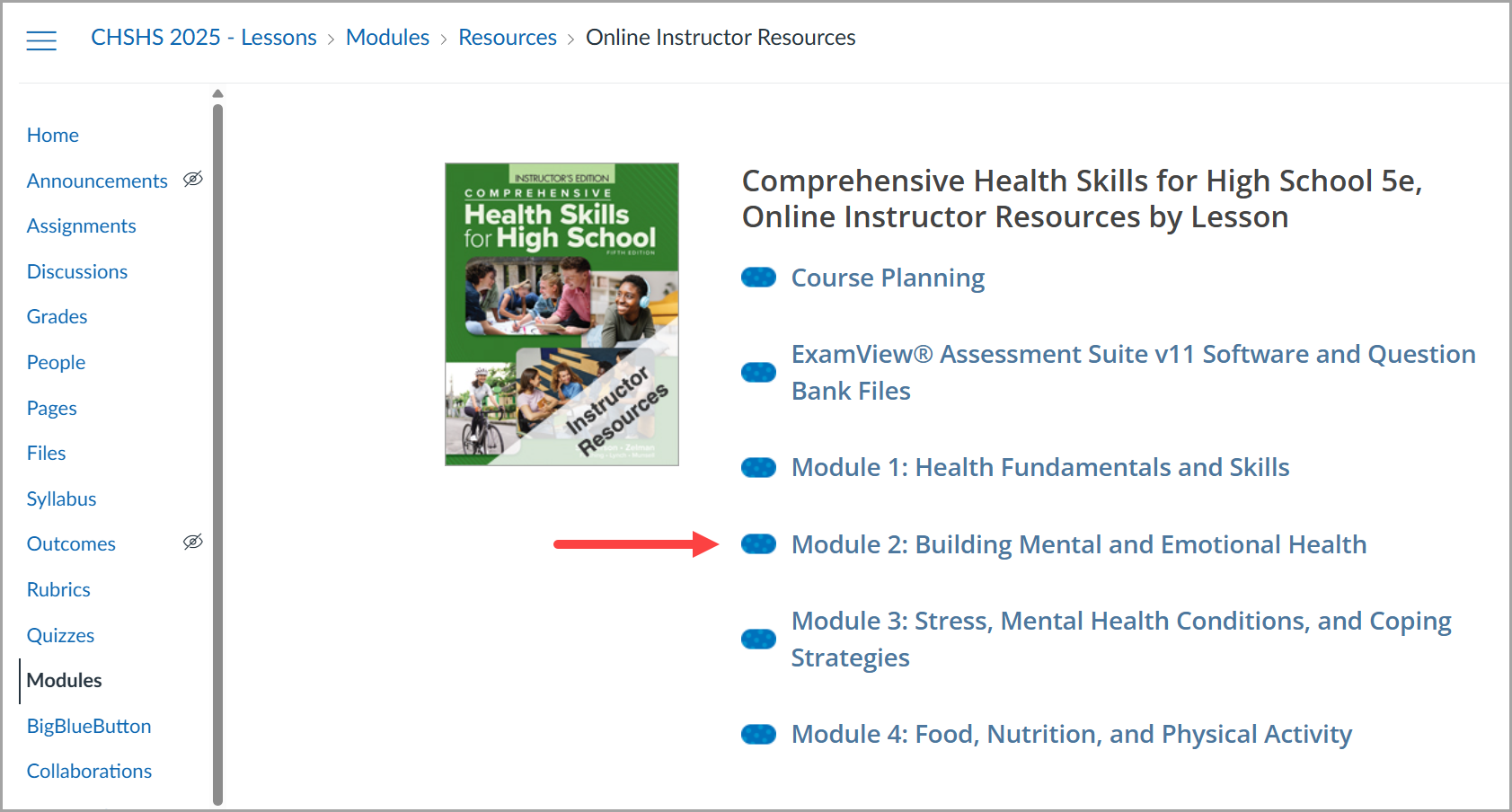
- Select the Online Instructor Resources link from your Canvas course.

- Select a specific Module for which you would like to access the question bank files for use in Canvas.
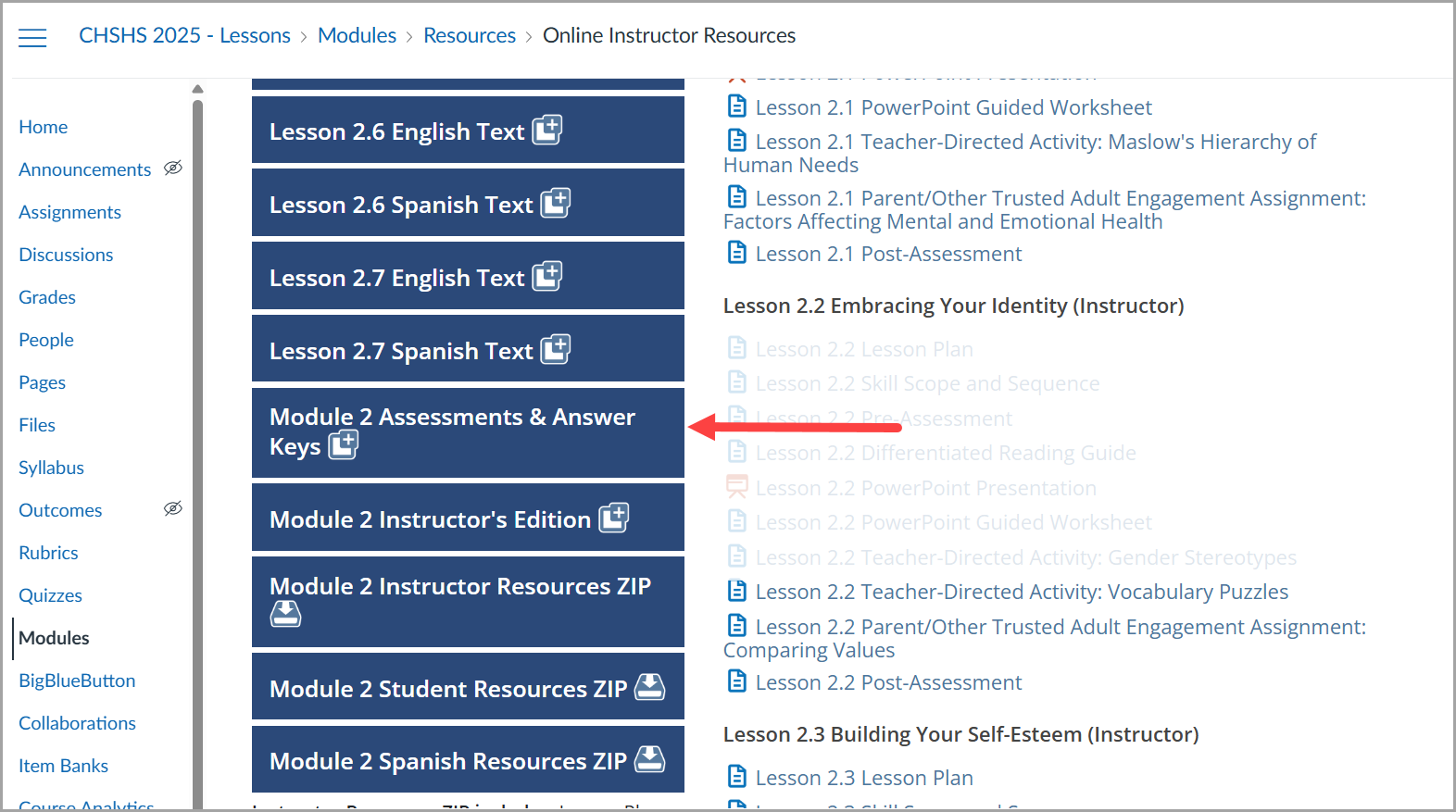
- View the Lesson Materials for Instructor then select Module 2 Assessments & Answer Keys.
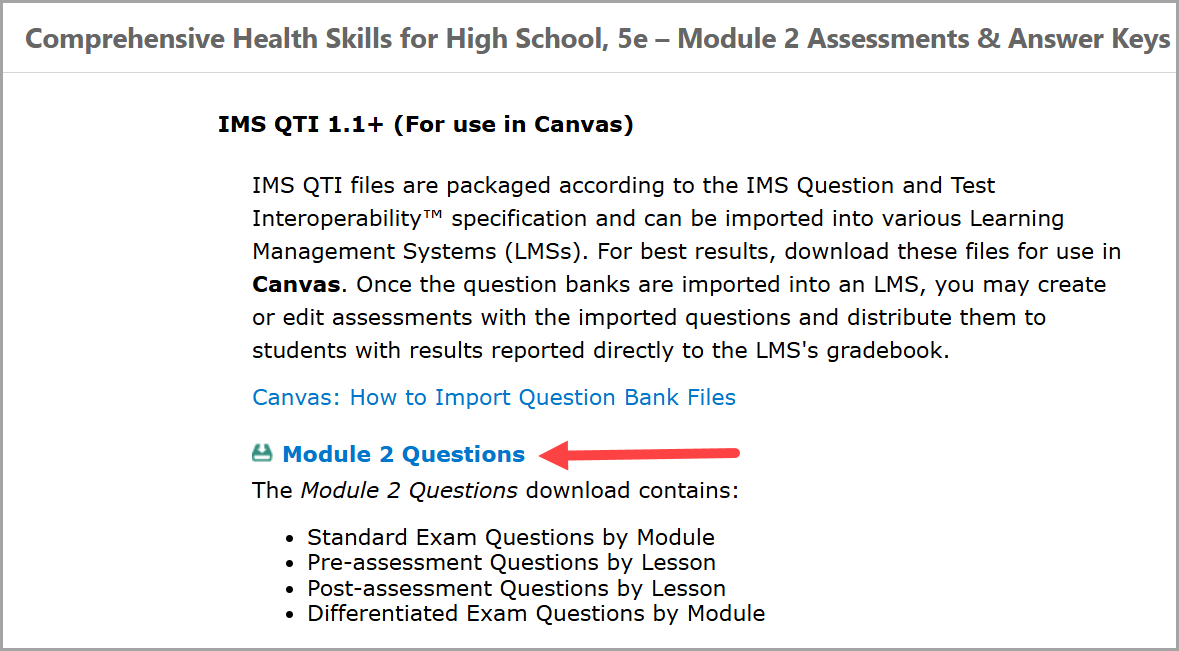
- Scroll down until you see the IMS QTI 1.1+ (For use in Canvas) section. There are a number of question bank files available for this title. Select Module 2 Questions link which is a .zip folder that will download to your local hard drive.
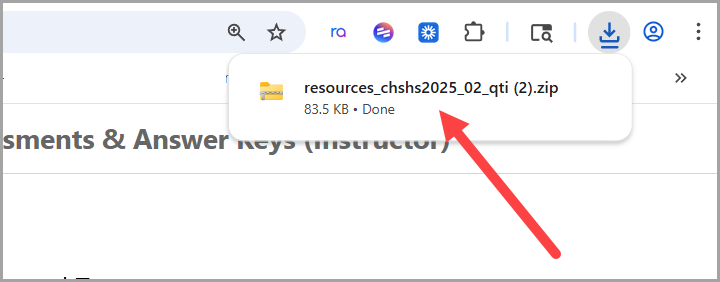
- Extract the .zip folder as there are multiple .zip folders inside.
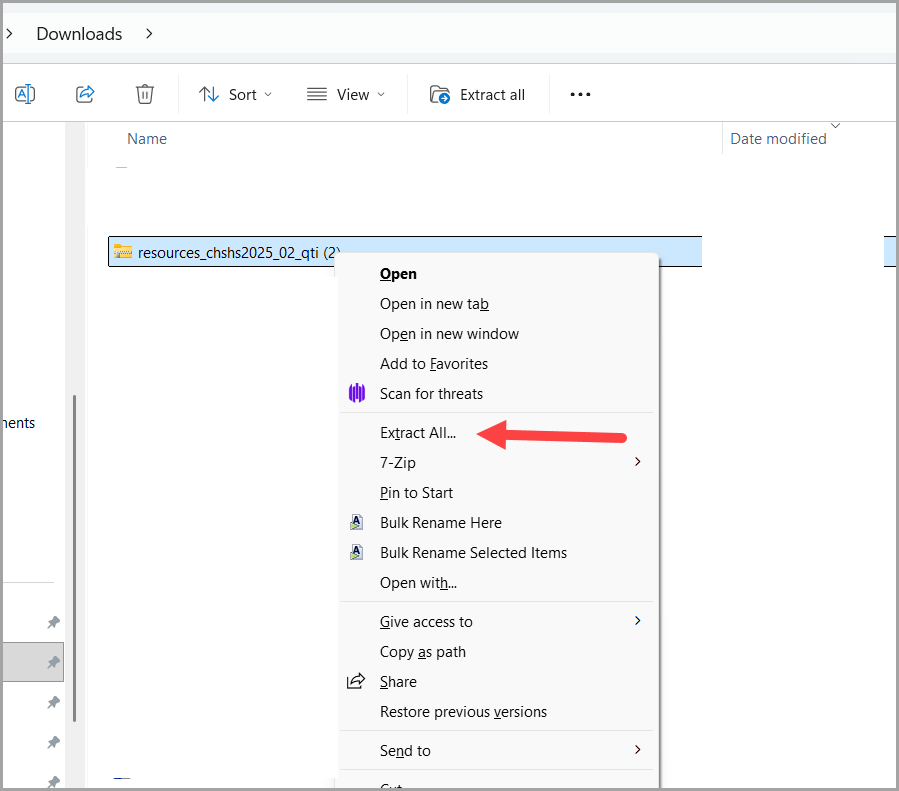
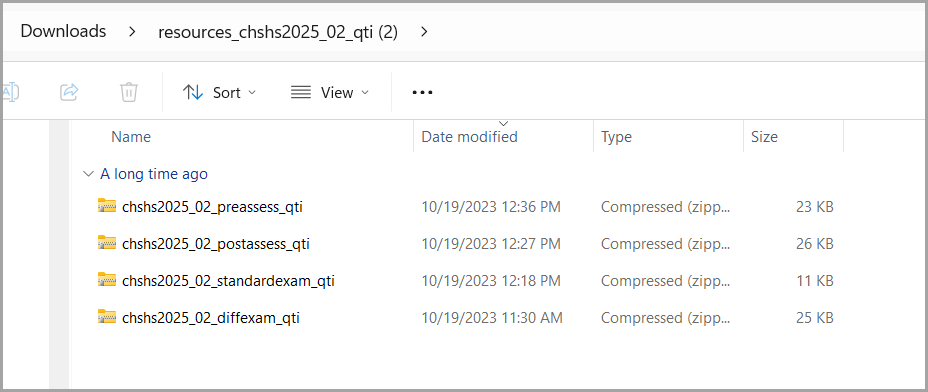
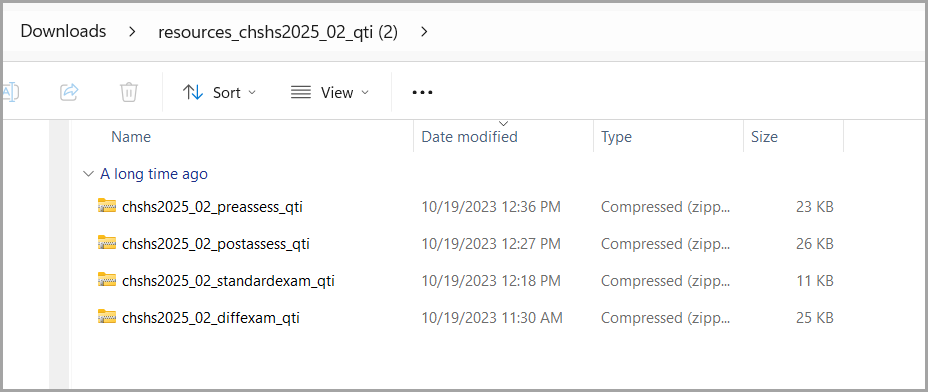
- Open the extracted folder to find...

...one .zip folder for each question type in this module.
- Repeat steps 2-5 until you have downloaded the ZIP folder from each Module you would like to use.
Follow the steps below to Import Question Bank Files into your Canvas course:
- Go back to your Canvas course and select Course Settings.

- Select Import Course Content.

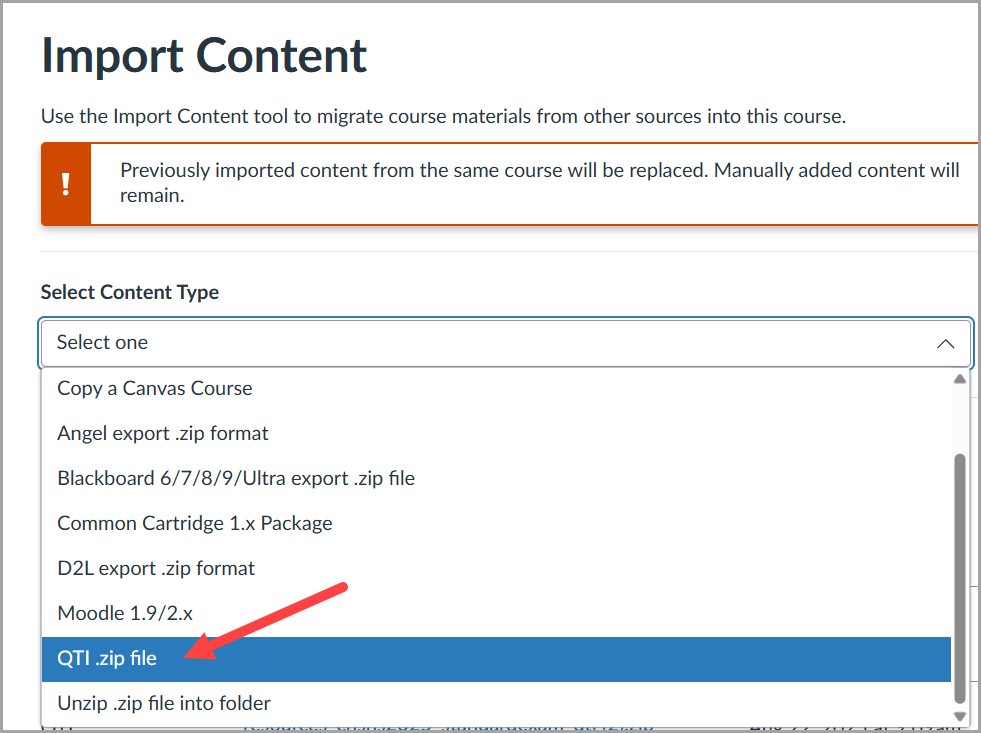
- Under Import Content, select the drop-down menu and choose QTI .zip file.
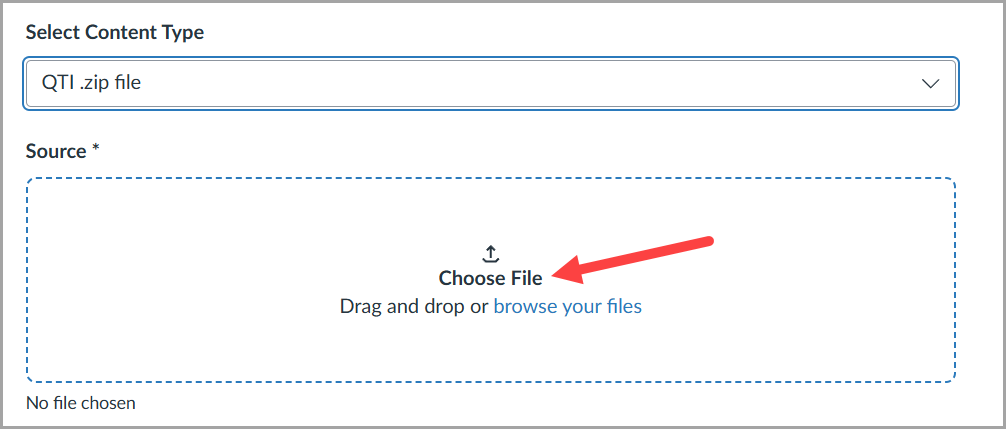
- Select Choose File (or drag and drop) to find one .zip folder to import at a time.
- Find the Extracted Folder and double click.

- Then select a .zip folder to import.
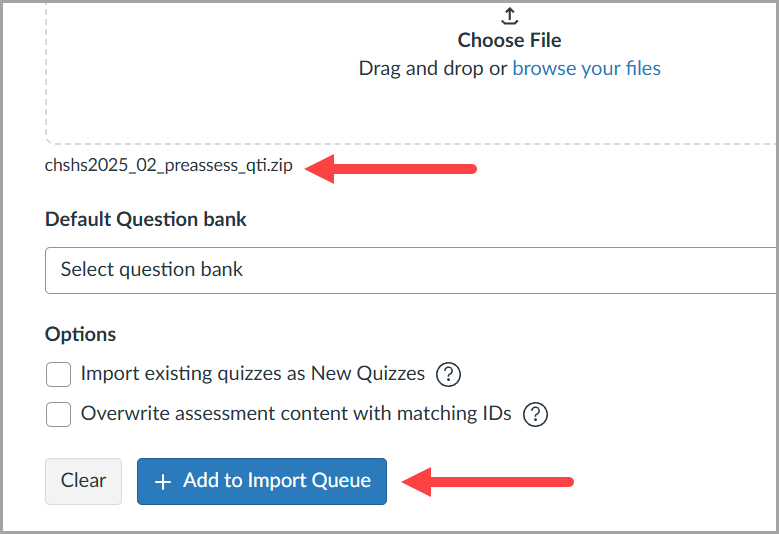
- Once it appears under "Choose File," select the + Add to Import Queue button.
- The QTI files will be in the Queue until they have fully imported and will show Completed.

- Repeat Steps 3-7 until you have all question bank file types (pretest, posttest, etc.) you would like in this course.

