G-W Assessment Moodle: Managing Student Submissions and Resending Scores

Jul 14, 2026
 0
0
Retake/Reopen Assessment
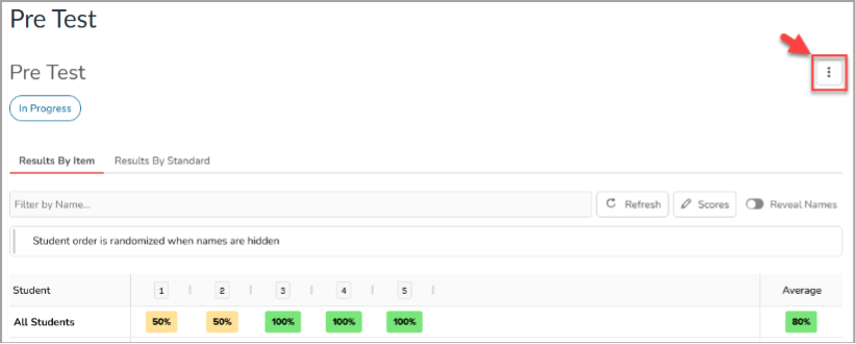
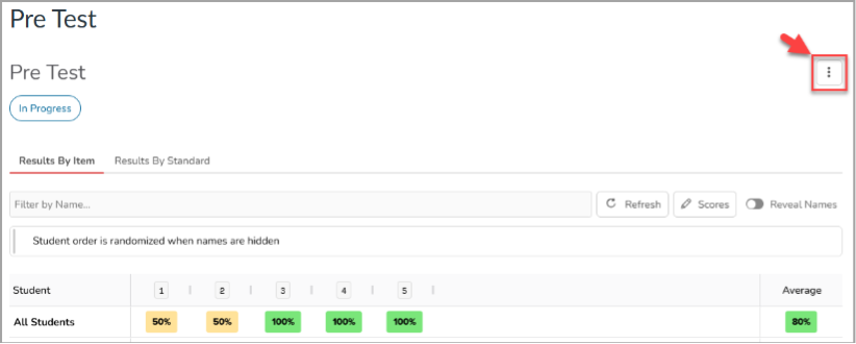
The More Options button provides tools to manage student submissions and resend scores to the LMS.
- From the assessment results page, select the More Options button.
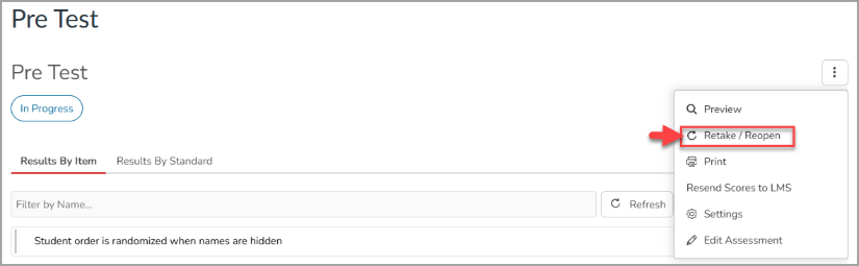
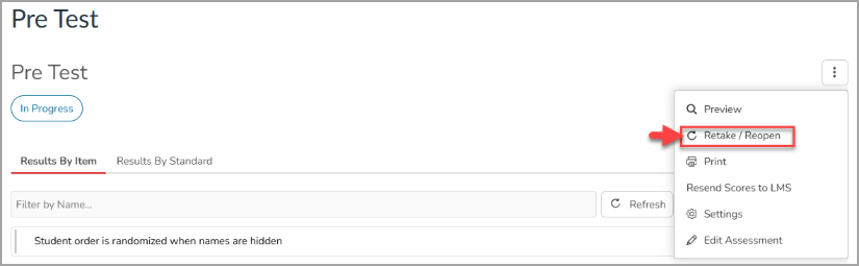
- Select Retake/Reopen to manage student attempts.
- The Additional Attempt option allows you to grant a student a fresh start on an assessment. Select the “Additional Attempt” button and then “Grant Attempt”; this will provide the student with a new additional attempt. Previous attempts are still retained.
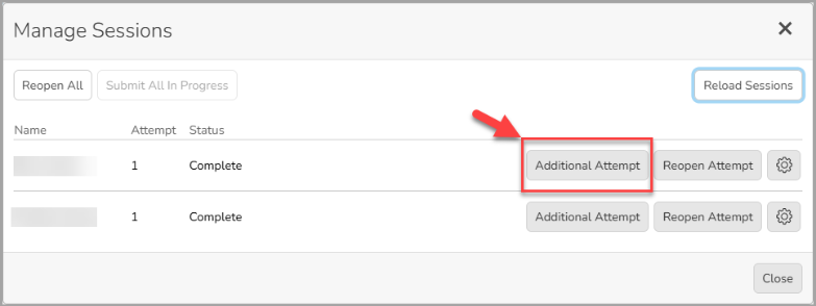
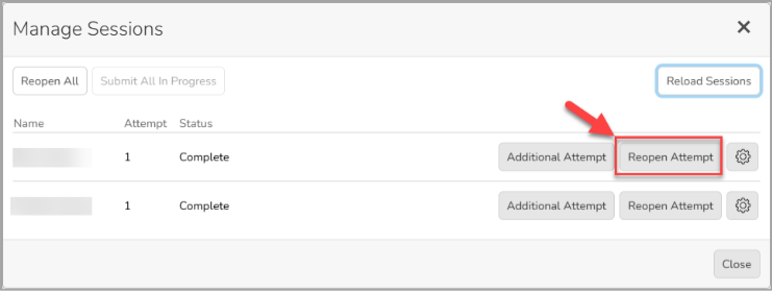
- The Reopen option allows you to let a student continue working on an assessment they have previously submitted. To do this, select “Reopen Attempt” and then select “Reopen Submission”.
Important: When reopening or allowing a student to retake an assessment, please make sure the assessment due date has not expired in your LMS.
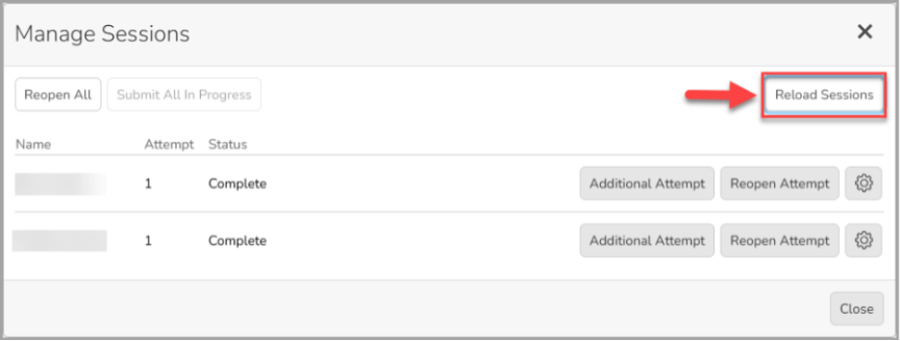
- Select the "Reload Sessions" button to update your session.
Submit In Progress Attempt
Instructors can submit assessments on behalf of students who did not complete or submit an attempt.
- From the assessment results page, select the More Options button.
- Select “Retake/Reopen”.
- Select “Submit In Progress Attempt” next to the student’s name or select “Submit All In Progress” to submit all students whose attempts are currently in progress for this assessment.
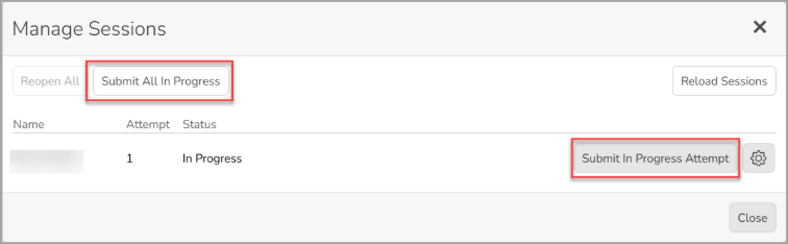
- A Manage Sessions modal will appear to confirm your submission. Select “Submit” to submit the chosen assessments. Close the Manage Sessions modal.
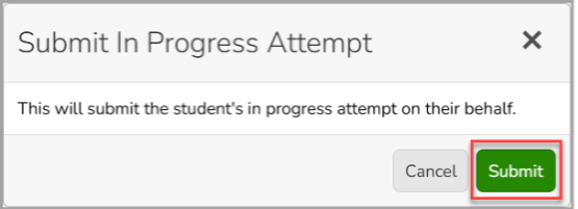
Note: Any automatically graded questions that had answers will still be automatically graded, but manually graded questions will still need to be scored.
Resend Scores to LMS
If student scores are not appearing in the gradebook,
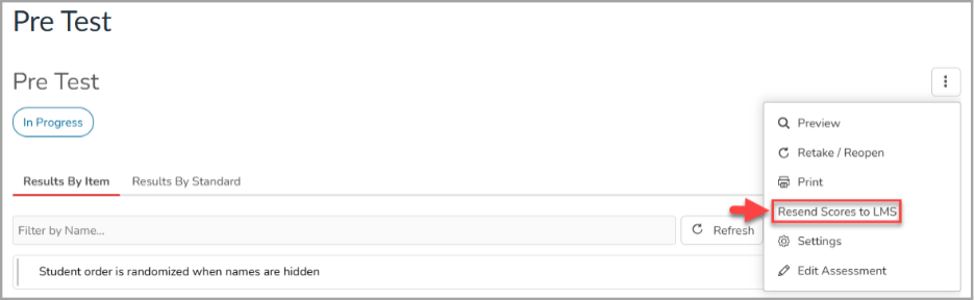
- Select the “Resend Scores to the LMS” button from the More Option window to resync the grades.
Important: Please note that resending scores will resend the scores for All students; any existing grades in the gradebook will be overwritten.