


 0
0
Canvas Blueprinting is a feature that allows you to create a parent version of a course and link it to one or more associated courses. This makes it easy to keep content consistent and share updates across all sections. Use Blueprinting when:
-
You are managing multiple sections of the same course
-
Courses need updates during the semester
-
A course designer or curriculum specialist is responsible for maintaining the course content
-
You want to provide a consistent, standardized learning experiences across all sections
Terminology: When referring to an associated class, this refers to a Blueprint Association which is a course that is connected to the Blueprint class.
Important Information
-
Only one instructor account can connect GWA to the Blueprint course to set up assessments using G-W Assessment.
-
Only one Instructor can connect to an associated course.
- Example: A single Blueprint course with 6 associated courses would have 6 instructors, each connected to their own associated course and linked to the Blueprint.
-
Assignments can be added to the Blueprint and synced with the connected courses at any point.
-
If an assignment is deleted from a Blueprint course after it has been synced, it will not be removed from the associated courses.
-
Custom questions within an assessment from the Blueprinted course cannot be edited in the associated course.
- If custom questions created by another instructor are removed from the assessment, they cannot be added back to the assignment.
-
Settings configured in G-W Assessment for an assessment in the Blueprint course will not be brought over to assessment in the associated course assessments.
Use the steps below to set up a Blueprinted course with G-W assessment assignments and to sync the course with the associated courses.
-
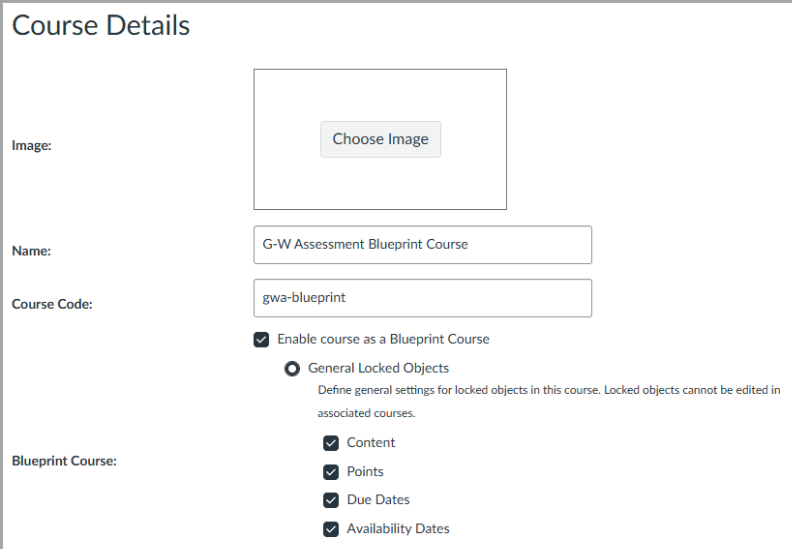
Within Canvas, under the settings for the course, select the check box for "Enable course as a Blueprint Course".
- A Blueprint course cannot have students enrolled and this option will be greyed out if students are already in the course.
- Content must be selected to bring the G-W Assessment assignments over to the associated courses. Select any of the additional settings such as Points, Due Dates, or Availability Dates depending on your needs.
-
Next, use the G-W Assessment app within the left navigation to connect your course to GWA.
-
Assignments can now be created within your Blueprint course.
-
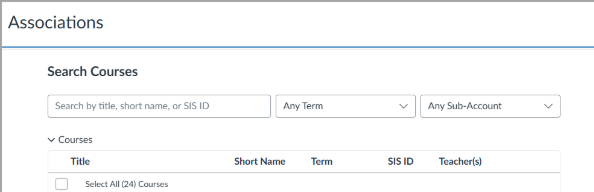
Create additional courses and link those as Associations to the Blueprint course.
-
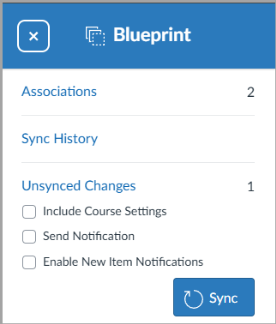
You can now sync all your assignments and other course materials to these associated courses.
-
Once an instructor is set up in their associated course, they can connect that course to GWA and assign additional assessments as needed.

