2
2
G-W LTI 1.3 Setup for Moodle
Moodle Admin Registers the G-W LTI Tool
1. Log in as an administrator.
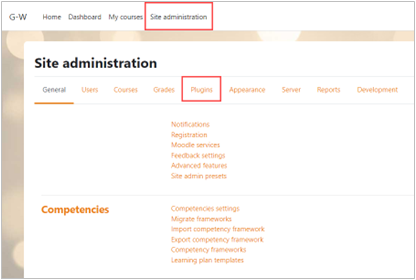
2. Select “Site administration” to open the menu. Then, select the "Plugins" tab.
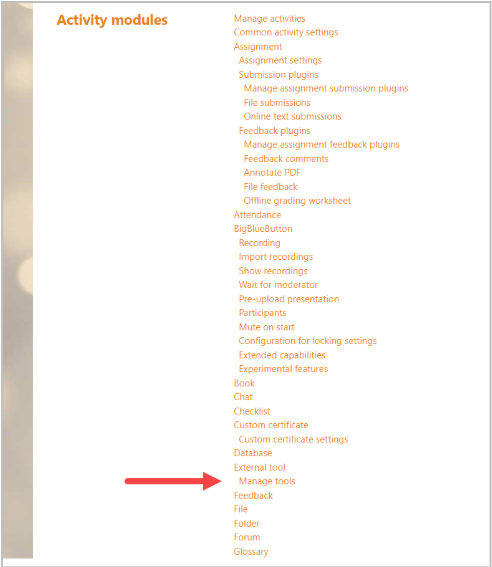
3. Under “Activity modules”, select “Manage tools”.
4. Select “configure a tool manually”.
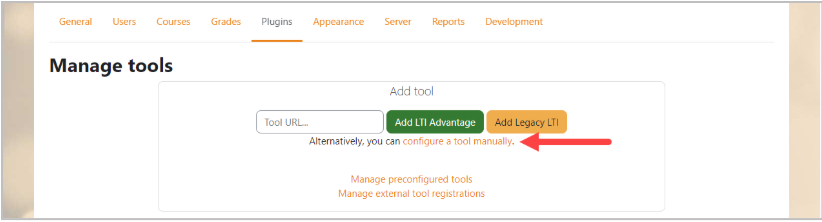
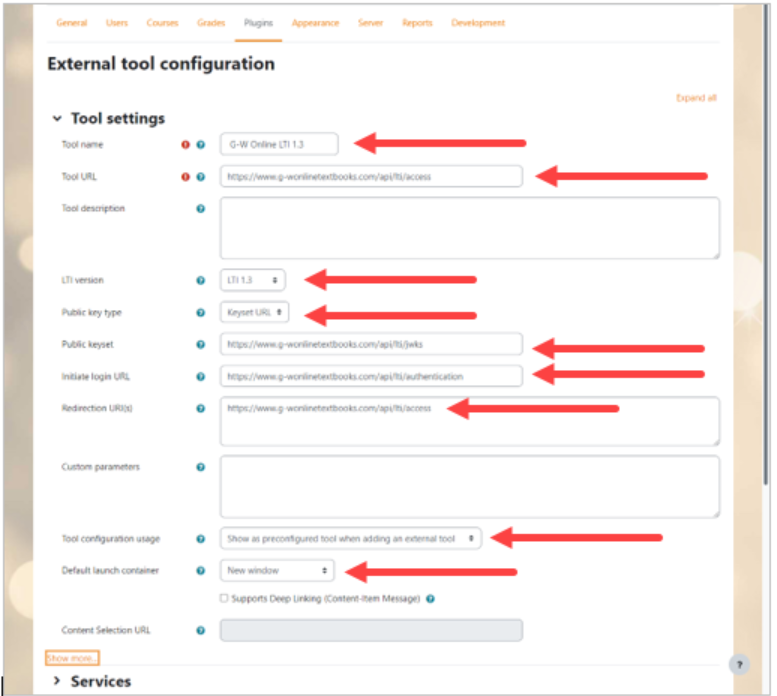
5. Enter the following information into the fields:
Name*: G-W Online LTI 1.3
Tool URL*: www.g-wonlinetextbooks.com/api/lti/access
LTI version*: LTI 1.3
Public key type*: Keyset URL
Public keyset*: https://www.g-wonlinetextbooks.com/api/lti/jwks
Initiate login URL*: https://www.g-wonlinetextbooks.com/api/lti/authentication
Redirection URl(s)*: https://www.g-wonlinetextbooks.com/api/lti/access
Tool configuration usage*: Show as preconfigured tool when adding an external tool
Default launch container*: New window
6. Leave the following fields blank:
Custom Parameters: Leave this section blank.
7. After saving, go back to edit the tool and copy your Client ID.
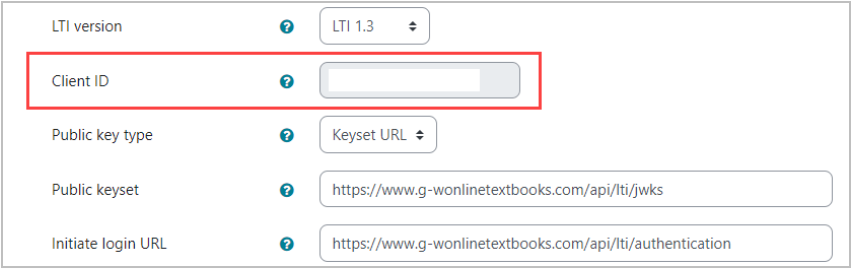
8. Send the following information to G-W to finalize setup before testing:
Client ID
Your Moodle Domain (i.e https://(yourorganizationhere).moodlecloud.com/)
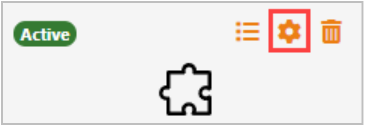
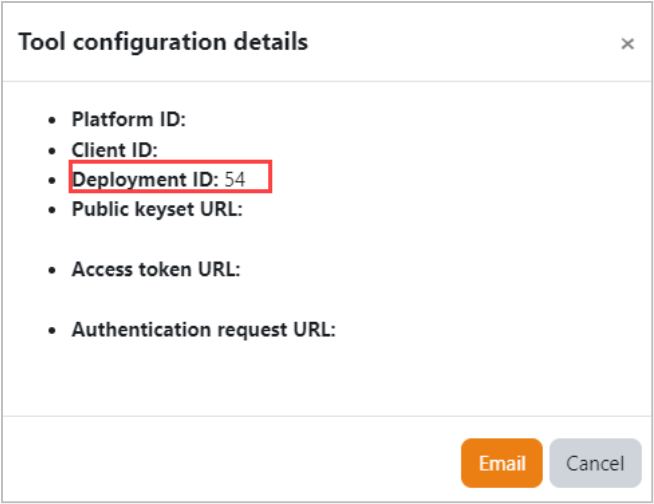
Your Deployment ID from the Tool Configuration details found by going to Site Administration -->Plugins -->Manage Tools --> Selecting "Edit" on the new tool you have created