


G-W LTI 1.3 Setup for Blackboard Learn/Ultra
Blackboard Admin Registers the G-W LTI Tool
1. Log in as an administrator
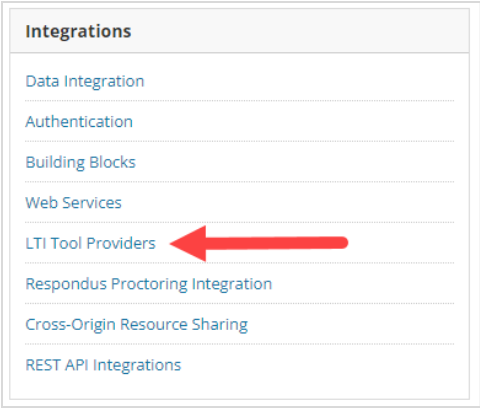
2. Select the “Admin” tab to open the admin menu. Under the Integrations section, select “LTI Tool Providers”.
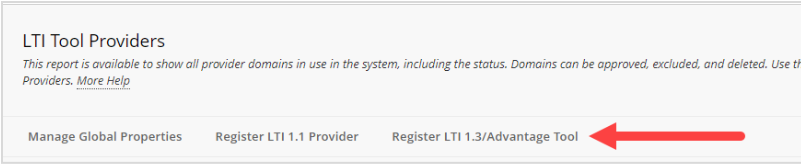
3. Select “Register LTI 1.3/Advantage Tool”.
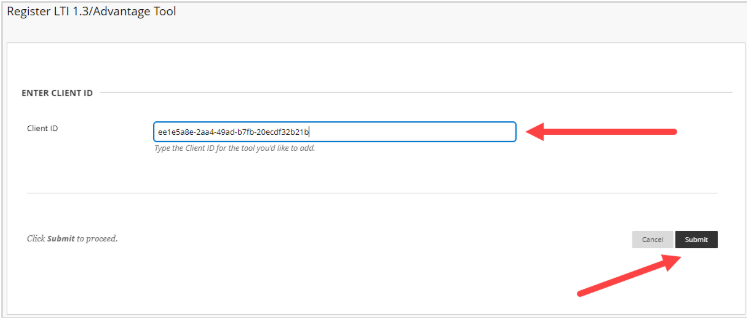
4. When asked for a Client ID, add the following and select “Submit”: ee1e5a8e-2aa4-49ad-b7fb-20ecdf32b21b
5. The tool will automatically populate the correct settings. Please return the LTI Tool Providers page.
NOTE: Please document the Deployment ID of the tool. It will be a string of letters and numbers with dashes, like the Client ID you have been provided. You will need to send this to G-W to finalize setup.
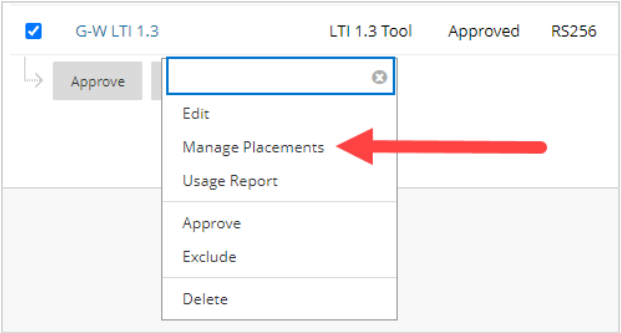
6. Select the drop-down arrow next to G-W LTI 1.3 in the Tool/Provider column. Select “Manage Placements” from the options.
7. Select “Create Placement” and fill in the following information:
Label: G-W LTI 1.3
Handle: G-W LTI 1.3
Availability: Yes
Type: Course content Tool + Allows grading
Launch in New Windows: checked
Target Link URL: https://www.g-wonlinetextbooks.com/api/lti/access/lti-key/
8. Select “Submit” and then return to the LTI Tool Providers page.
9. Select the drop-down arrow next to G-W LTI 1.3 in the Tool/Provider column. Select “Approve” from the options.
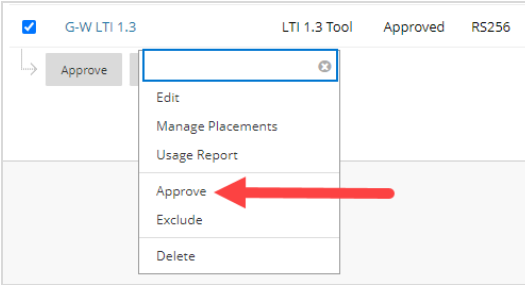
10. Send your Deployment ID to G-W to finalize the setup. After they have finalized the setup, you can then test the links in one of your courses. It is recommended to check the Resource folder and select "Activate Your Subscription", navigate to the Online Instructor Resources after activation, and confirm general functionality.

