G-W LTI 1.3 Setup for Canvas

Jun 23, 2026
 2
2
G-W LTI 1.3 Canvas
Canvas Admin Registers the G-W LTI Tool
- Log in as an administrator.
- Open your Admin account and navigate to Developer Keys.
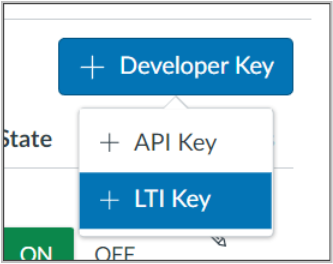
- Select "+ Developer Key", and then select "+ LTI Key". Please note that you will need to remove G-W’s LTI 1.1 tool if it is present, as it can interfere with the LTI 1.3 tool.
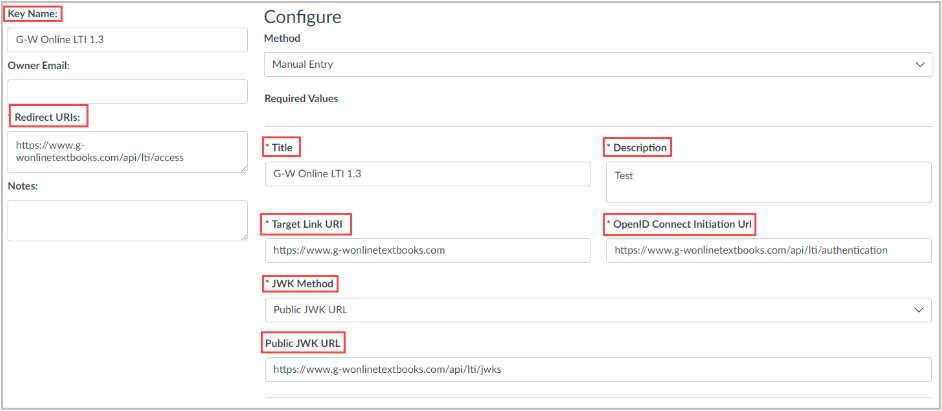
- Enter the following information into the fields:
Title: G-W Online LTI 1.3
Description: Your choice
Redirect URLs: https://www.g-wonlinetextbooks.com/api/lti/access
OpenID Connect Login URL: https://www.g-wonlinetextbooks.com/api/lti/authentication
Target Link URI: https://www.g-wonlinetextbooks.com
JWK Method: Public JWK URL
Public JWK URL: https://www.g-wonlinetextbooks.com/api/lti/jwks
Placements: Link Selection
Target Link URI: https://www.g-wonlinetextbooks.com
Select Message Type: ltiResourceLinkRequest
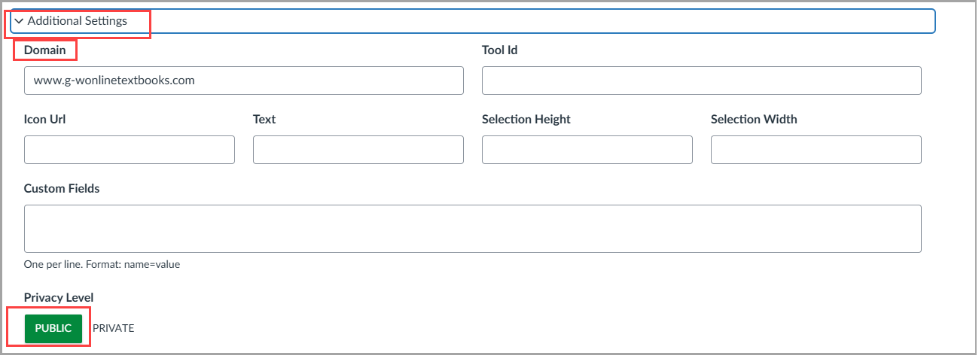
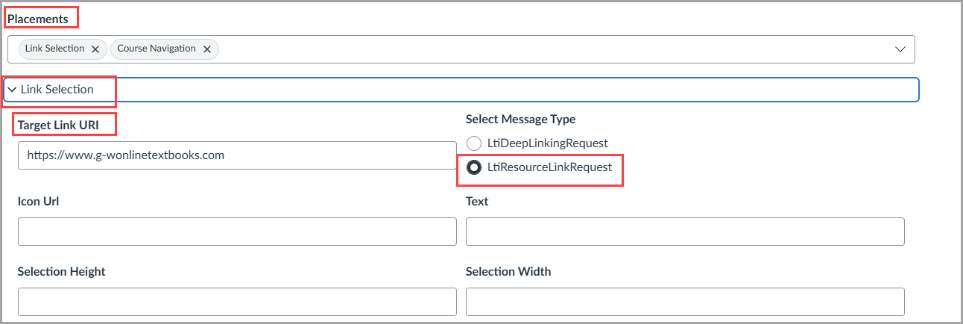
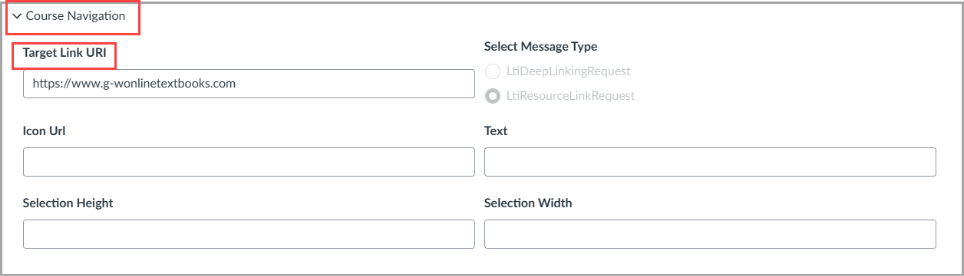
- Select "Save". Make sure your new LTI is turned on and copy the Client ID.

- In your Admin account, select "Settings", select the "Apps" tab, then select "View App Configurations".

- Select "+ App"

- Change the Configuration to "By Client ID" and enter the Client ID. Select "Submit".
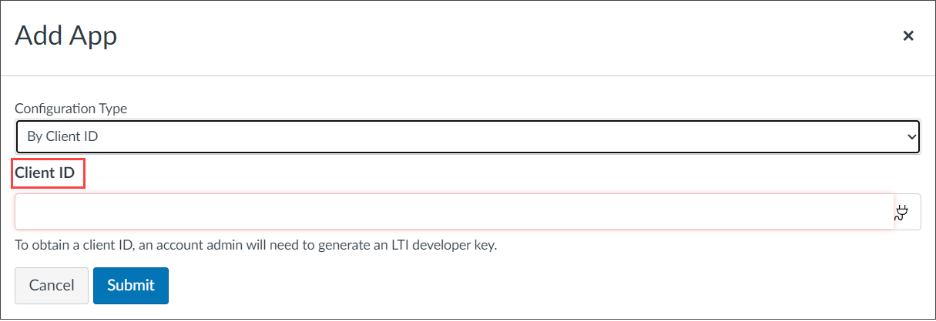
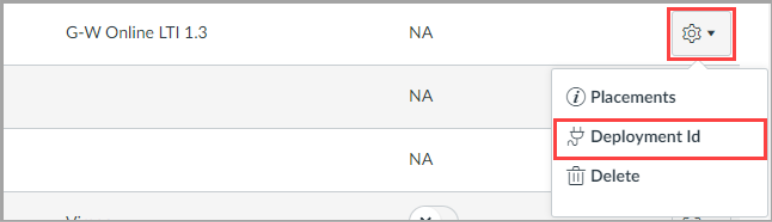
- Send G-W your Client ID and Deployment ID to finalize setup. Your Deployment ID it is found by going to Settings -> Apps -> App Configurations, selecting the gear next to the G-W LTI 1.3 tool, and then selecting "Deployment ID".