


G-W Assessment Schoology: Assessment Settings

Mar 30, 2026
 4
4
Some assessment policies must be adjusted directly within G-W Assessment to align with the assignment policies in Schoology. You can modify these settings by selecting the assignment after it has been created.
- To access your assessment settings, locate the assigned assessment you wish to modify within the Schoology assignment list and select it.
- Access your assessment settings by selecting on the “More Options” button and selecting “Settings.”
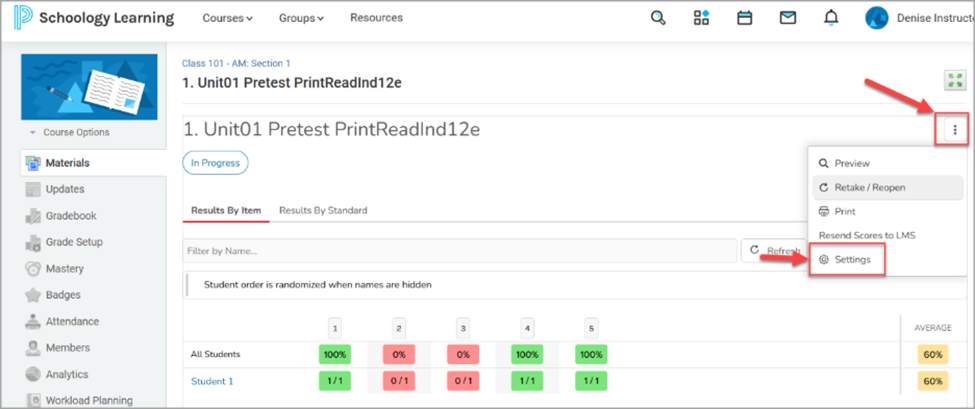
- A dialog box will open with several settings.
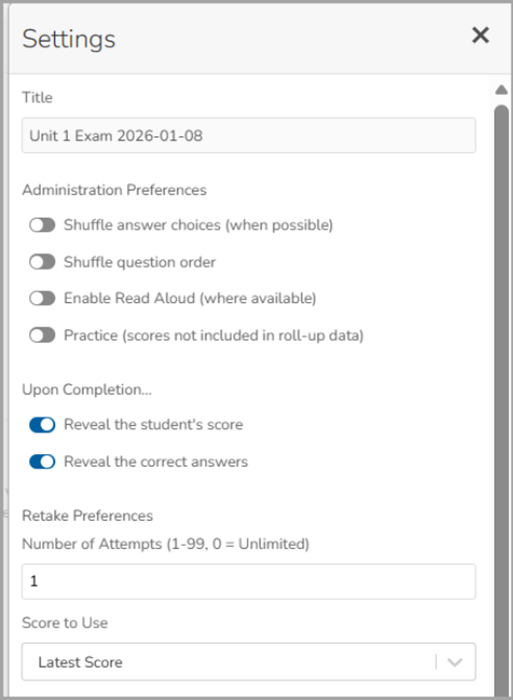
From here, you can toggle the following on or off:- Shuffle answer choices: Randomize the order in which students see the answer choices. This feature is only available for multiple choice questions.
- Shuffle question order: Randomize the order in which students see questions.
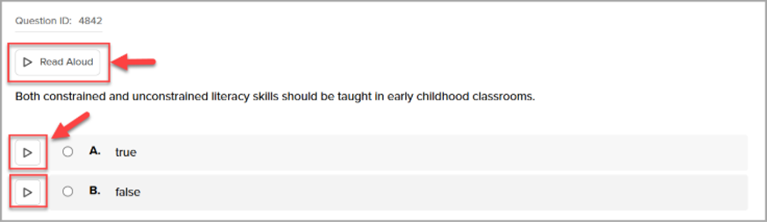
- Enable Read Aloud: Students will have the option to have questions and answer choices read to them using text-to-speech by selecting the “Click to Read” (
 ) and “Read Aloud” buttons.
- Practice: When selected, the assessment will no longer send scores to the LMS gradebook. All other policy settings will function normally, and students will receive a message that the assessment was taken in practice mode. The assessment will still appear in the gradebook as a line item. No grades will be passed back when the students complete a practice assessment. You can still open the assessment to review student performance, even though it does not count toward the final grade.
Note:- If you switch an assessment from Practice mode to Graded, use the “Resend Scores to LMS” feature to send the scores that were recorded while in Practice mode.
- If you switch an assessment from Graded to Practice after students have already completed it, you may need to manually clean up any previously sent scores in their LMS.
- Reveal the student’s score: Display the student’s score after they complete the assessment.
- Reveal the correct answers: Display the questions, correct answers and solution (where available) after the assessment is completed.
Note: If both Reveal the student’s score and Reveal the correct answers are toggled off, student will only see a “Your work has been submitted” message after completion. - Allow re-takes: By default, students are given 1 attempt on an assessment. Instructors can change the number of retakes to any value between 1 and 99 and provide unlimited retakes by setting the value to 0. The latest score is selected by default for assessment grades, but this can be adjusted to the highest score by selecting the drop down below the number of attempts.
- Select “Submit” once all your settings have been adjusted. Note: these settings can be adjusted after completion if you prefer to withhold display of correct answers until after the assessment due date has expired.

