


 13
13
Step 1: Login to your Learning Management System (Canvas, Blackboard, BrightSpace/D2L, etc.) and access the course for which you would like to activate your subscription.
Step 2: Locate and select the Activate Your Subscription link typically found within your Resources module. If you’re unable to locate this link within your course, please contact your instructor for further guidance on where this link may be located.
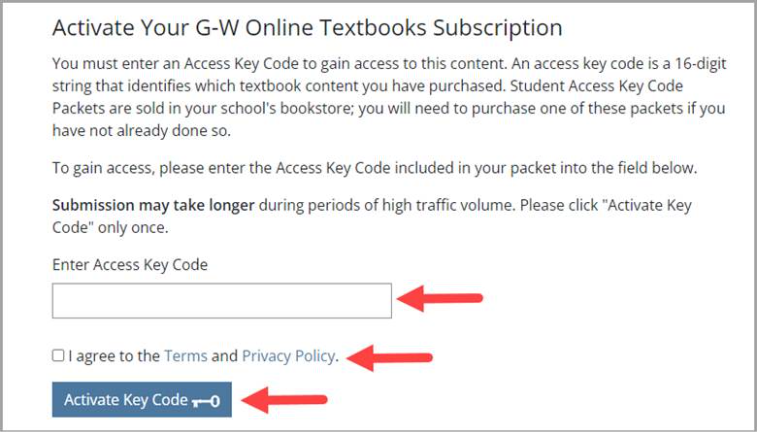
Step 3: On the next screen, Enter your Access Key Code, check the box next to "I agree to the Terms and Privacy Policy," and select the "Activate Key Code" button.
Step 4: Once you have entered your code, you’ll receive a confirmation message that your activation was successful.

Troubleshooting
-
If you’re being prompted to login or create an account after selecting the Activate Your Subscription link, this error is typically caused by settings within your browser blocking content from properly loading. We recommend enabling 3rd party cookies within your browser. For instructions on how to enable 3rd party cookies, please access the following article: https://support.g-w.com/kb/article/280-system-requirements-enable-3rd-party-cookies/
-
If you need assistance, please create a ticket with our support here: https://support.g-w.com/new/

