Moodle: How to add G-W's External Learning Tool

Jan 21, 2026
 106
106
LTI Tool Configuration
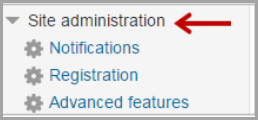
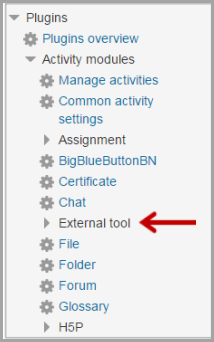
- Select Site Administration
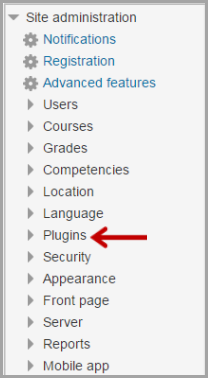
- Select Plugins
- Select Activity Module
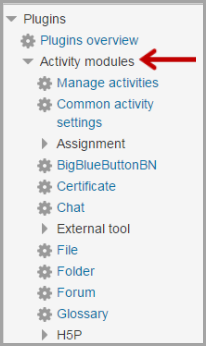
- Select External Tool or LTI (depends on versions)
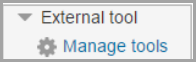
- Select Manage Tools
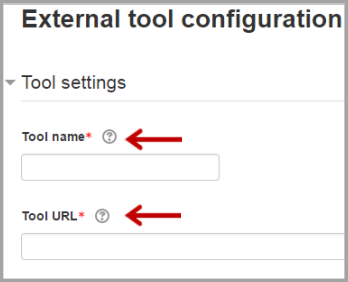
- Type in the tool name. (Suggested: G-W or Goodheart-Willcox) Then copy the Launch URL from the G-W provided integration PDF and paste it in the Tool URL field
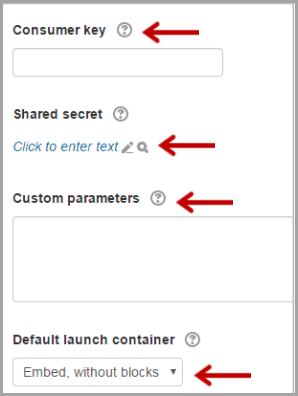
- Copy the Consumer key, Shared secret, and Custom parameters from the G-W provided integration PDF and paste into the corresponding fields. Leave Default launch container to Embed, without blocks.
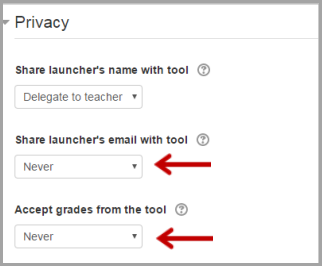
- Make sure to change Share launcher’s email with tool to Never and Accept grades from the tool to Never.
- Select Save Changes.