Moodle: How to Import a Common Cartridge

Jan 21, 2026
 163
163
Common Cartridge Implementation with Moodle
The common cartridge (.imscc file) and integration pdf was sent to you through our ticket system. Please save those to your computer for ease of access.
1. Log into your Moodle account.
2. Create a new course or open a course you wish to import content into.
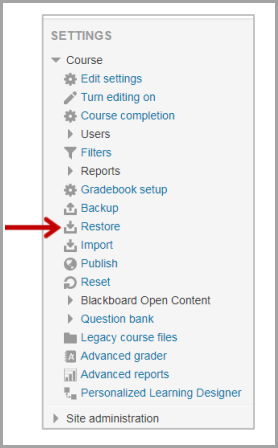
3. Under Settings, select Restore.
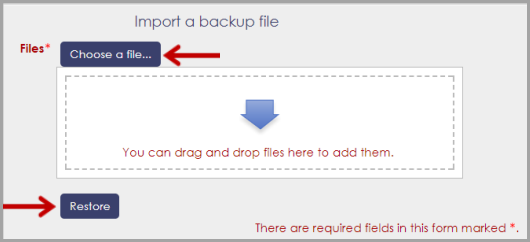
4. Select Choose File to upload the common cartridge (.imscc) file that was sent. And then select Restore.
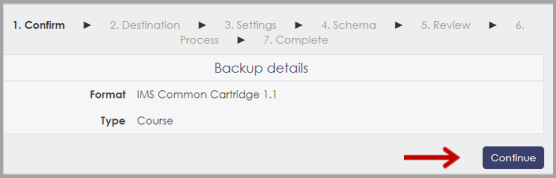
5. Select Continue.
6. Scroll down to Restore into this Course, and then select Continue.
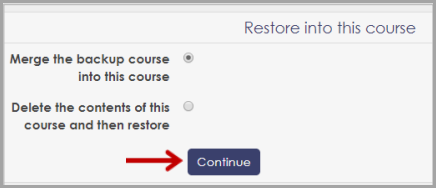
7. Select, Next.
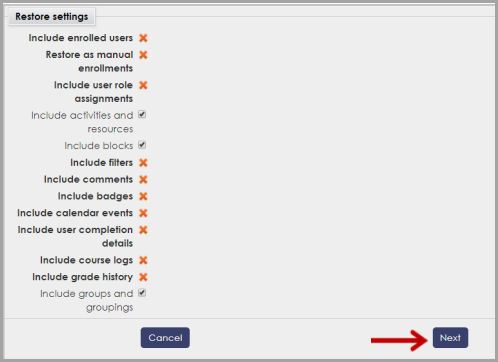
8. Select Next.
9. Select Perform restore.
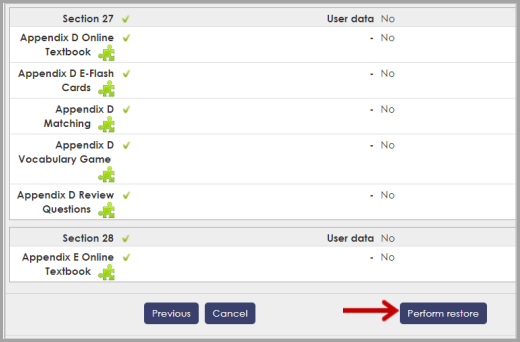
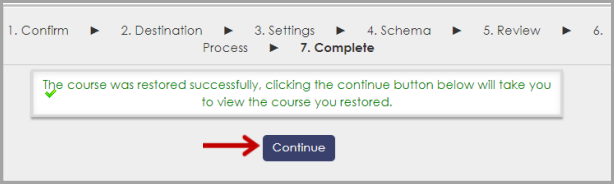
10. Select Continue.