57
57
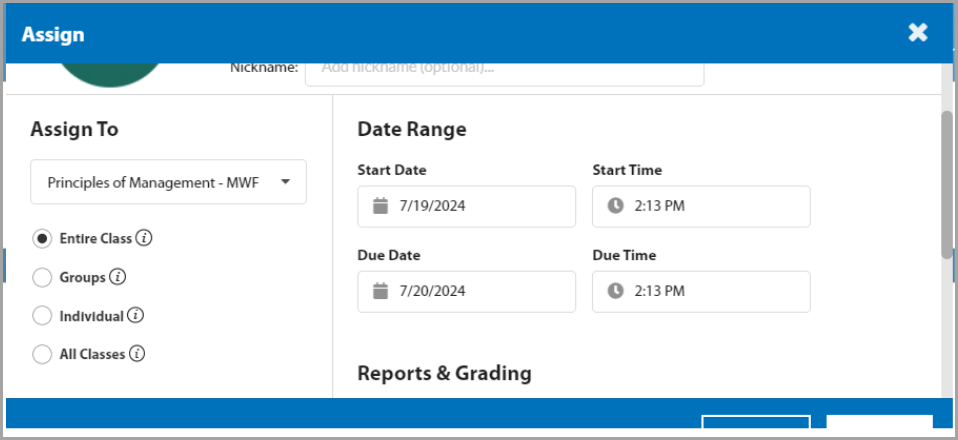
In the Assign menu, you can customize assignment settings for the entire class, for students in select groups, for select students, or across all classes (if applicable). You can set the start date, end date, and time for the activity.
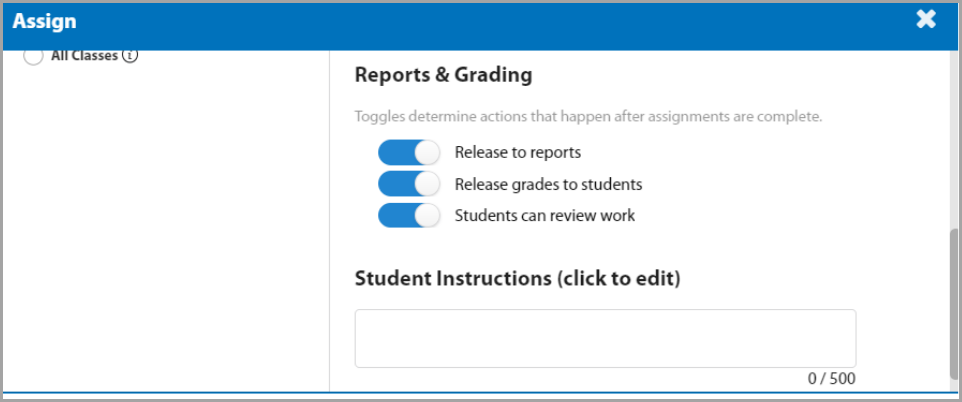
You can choose whether the assignment grades will be displayed in the reports, whether the students can see their grades, and if they are allowed to review their assignment. These settings can always be adjusted after the assignment has been activated.
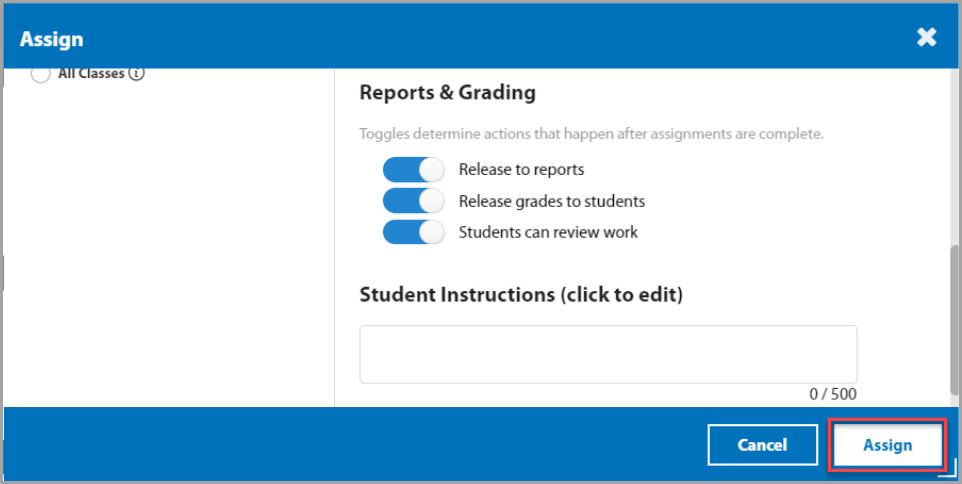
Once you’ve selected your desired settings, click Assign.
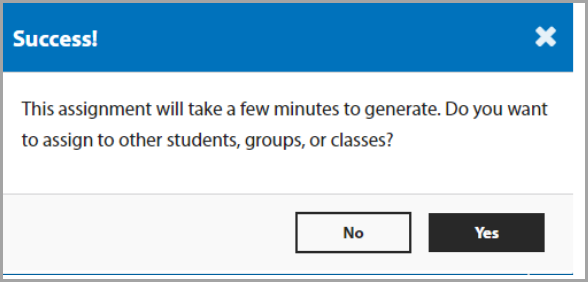
A success window will appear and ask if you want to assign to any other groups or classes.
-
If you click Yes, the Assign menu will stay open. You can then assign this activity to a new group.
-
If you click No, the window will close. In Ignite, activities may take up to a minute to successfully assign for your students.
Once the activity is assigned, a Calendar  icon will appear on the activity card, indicating it’s been assigned.
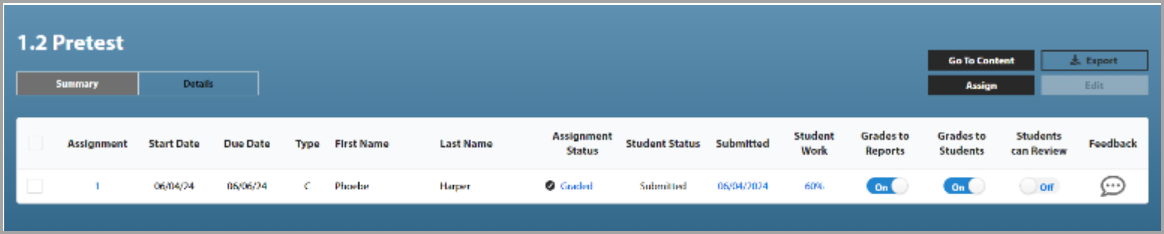
Click the Calendar icon to show the status of each student’s progress on the assignment. You can also access this information through each activity’s Grade Review under the Assignments tab.